

Cisco Webex for a hybrid digital workplace

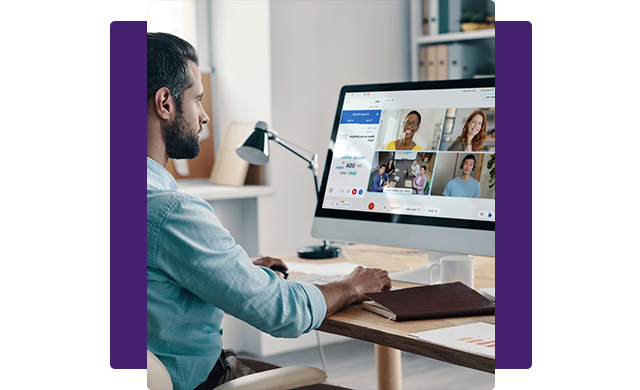
Cisco Webex is an online cloud-based collaboration platform for video meetings, messaging, calling, webinars, and hybrid work.

  • Enterprise-grade security
  • AI-powered productivity
  • Seamless business integrations
From telephony to a smarter collaboration tool

Webex by Cisco

From telephony to a smarter collaboration tool

Cloud-based collaboration application for calling, meeting, messaging and working efficiently.

Webex Calling

Cloud-based collaboration platform for calling with your existing Proximus numbers and rate plans.

Easily integrate your telephony into Webex by Cisco.

  • Calls and meetings from anywhere on any device
  • High quality calls and videos with Cisco devices via the Proximus network
  • Easy to manage users, devices, telephone settings, ...
  • Advanced analytics and accurate performance indicators
  • Secure and respectful of GDPR rules

Webex Suite

All-in-one combination for hybrid working including calling, messaging and meeting.

  • Power your telephony with enterprise cloud phone system
  • Working smoothly with an intelligent messaging system
  • Organize meetings, polls and events

Why Proximus?

Webex by Cisco together with Proximus has many advantages:

  • Reliability: fiber, 5G and PSTN connectivity
  • Advice: successful migration to Webex (Webex Readiness Track)
  • Support: certified engineers, from design to user adoption
  • Tailored integration of:
    • applications (CRM, ERP)
    • services (contact centers, business continuity, disaster recovery, ...)
    • devices (telephones, video conferencing)

Little ICT expertise within your company?

Outsource your Webex integration to our certified experts. Workplace as a Service allows you to put together your own ICT package with hardware, software and licenses. You pay per user.

Customer stories

Justice department accelerates digitalization in courts

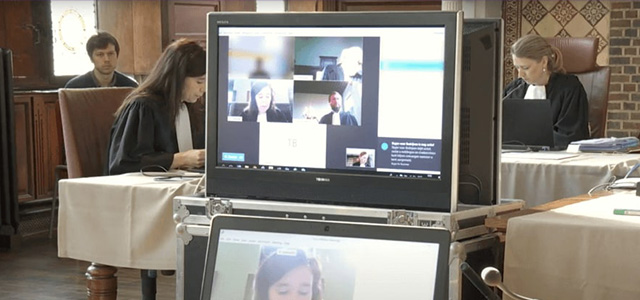
Corona accelerated digitalization at FPS Justice. The courts, for example, switched to video conferencing at a record pace. A radical digital transformation is on the agenda for the following years.

Read more

Prisons are going digital

Prisoners need to be able to prepare for reintegration in society in a controlled and safe way. That is the goal behind the digitalization of prisons.

Read more

Frequently asked questions

Webex is a cloud-based video conferencing, online meeting, messaging, and collaboration platform developed by Cisco WebexNew window . Businesses, educational institutions, and remote teams use Webex to host virtual meetings, webinars, training sessions, and team collaboration activities from anywhere.

Key Webex features include:

  • HD video and audio conferencing
  • Screen sharing and presentation tools
  • Team messaging and file sharing
  • Meeting recording and transcription
  • Virtual backgrounds and noise removal
  • Integration with popular business applications
  • AI-powered meeting assistance and summaries

Webex is available through web browsers, desktop applications, and mobile apps for iOS and Android devices.

Using Webex is simple and requires only a few steps:

  1. Sign up for a Webex account or receive a meeting invitation.
  2. Download the Webex desktop or mobile application or join directly through a supported web browser.
  3. Sign in to your account.
  4. Start a new meeting, schedule a meeting, or join an existing meeting using a meeting link, meeting number, or invitation.
  5. Use meeting controls to mute/unmute your microphone, turn your camera on or off, share your screen, chat with participants, and record meetings when permitted.

Webex can be used for one-on-one calls, team meetings, webinars, online training sessions, customer support, and large-scale virtual events.

To create a meeting in Webex:

  1. Sign in to your Webex account.
  2. From the Webex home screen, select Schedule a Meeting.
  3. Enter the meeting title, date, time, and duration.
  4. Add attendees by entering their email addresses.
  5. Configure meeting options such as passwords, waiting rooms, recording preferences, and audio settings.
  6. Click Schedule to create the meeting.
  7. Share the automatically generated meeting invitation and joining link with participants.

For immediate meetings, select Start a Meeting to launch an instant Webex session without scheduling in advance.

Tips for creating successful Webex meetings

  • Use a clear and descriptive meeting title.
  • Schedule meetings in the correct time zone.
  • Enable meeting passwords for added security.
  • Test your audio and video settings before participants join.
  • Share agendas and relevant documents in advance.

You can join a Webex meeting in several ways:

Join using a meeting link

  1. Open the meeting invitation email.
  2. Click the Webex meeting link.
  3. Choose to join through the Webex app or your web browser.
  4. Enter your name and email address if prompted.
  5. Configure your audio and video settings.
  6. Click Join Meeting. 

Join using a meeting number

  1. Open the Webex application.
  2. Select Join a Meeting.
  3. Enter the meeting number or meeting ID provided by the host.
  4. Enter the meeting password if required.
  5. Click Join.

Join from a mobile device

  1. Install the Webex mobile app.
  2. Open the meeting invitation link or enter the meeting number manually.
  3. Connect your audio and video settings.
  4. Tap Join to enter the meeting.

Troubleshooting Webex meeting access

If you cannot join a Webex meeting:

  • Verify that the meeting link and meeting number are correct.
  • Check your internet connection.
  • Update the Webex application to the latest version.
  • Ensure the meeting has started if the host requires participants to wait.
  • Contact the meeting organizer if you encounter access restrictions.

By following these steps, you can quickly create, host, and join Webex meetings from virtually any device or location.