- Select the month for which you want to access Availability KPIs. You will see different KPIs like mobile data, voice, SMS etc. being shown for each site of your contract.
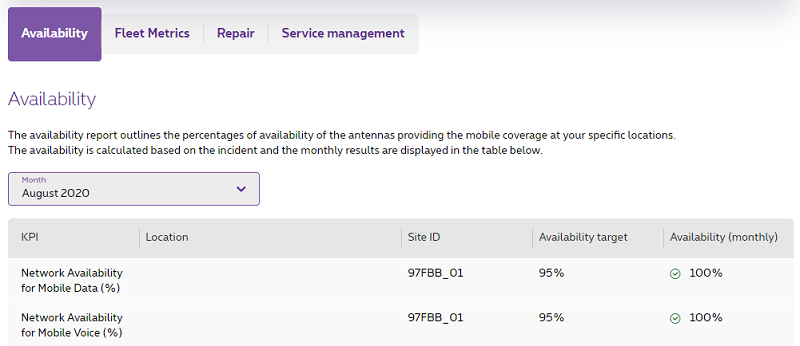
- Depending on the data you need, click on Export history – 13 months or Export this month.
View KPIs & reports for Mobile Continuity
Mobile Continuity Service is a paid service to guarantee the quality, continuity and availability of your mobile services. This helps to continuously improve your mobile experience.
We’ll explain you how to use MyProximus enterprise to consult different KPIs and reports on availability, mobile services, repair tickets etc.
Before you start
You will need access to MyProximus Enterprise to view the KPIs and Reports for Mobile continuity services. There are 2 ways to get access:
- Contact your company’s Digital Access Owner. He or she should give you access to manage everything or only mobile products in MyProximus.
- If you are the primary person responsible for your company (Digital Access Owner), you need to register for MyProximus Enterprise.
Access to KPIs and Reports for Mobile Continuity services
- Log in to MyProximus enterprise.
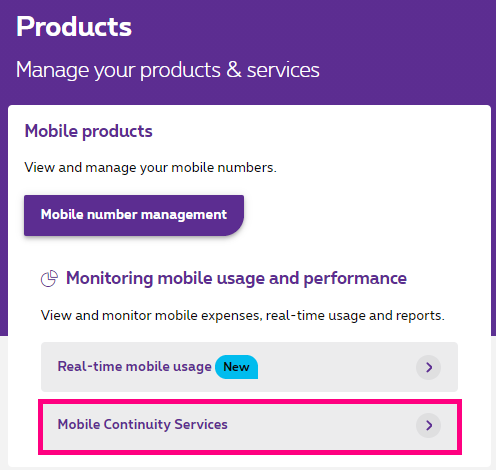
Log on to MyProximus Opens a new window - Click on Products and Mobile Continuity Services.
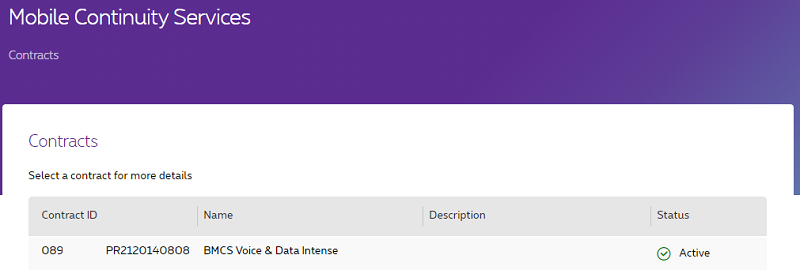
- A new page will open. Select the contract for which you want to consult the KPIs and reports. If there are more than 1 contract, select each contract separately to see the related KPIs and Reports.
You will now see different tabs with KPI’s for:
-
-
- Select the month for which you want to access Fleet metrics KPIs. You will see different KPIs like mobile data, voice, SMS etc. being shown for each site of your contract.
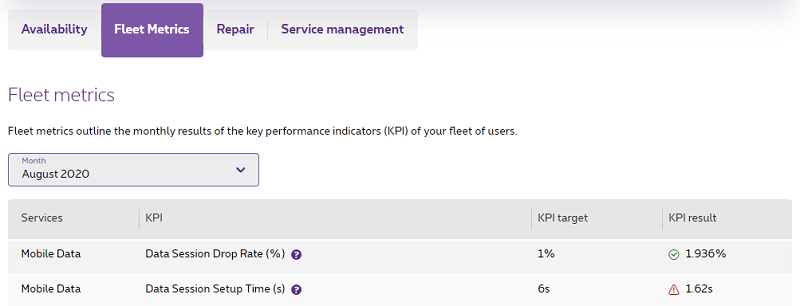
- Depending on the data you need, click on Export history – 13 months or Export this month.
- Select the month for which you want to access Fleet metrics KPIs. You will see different KPIs like mobile data, voice, SMS etc. being shown for each site of your contract.
-
- Select the month for which you want to access Repair KPIs. You will see different KPIs like mobile data, voice, SMS etc. being shown for each site of your contract.
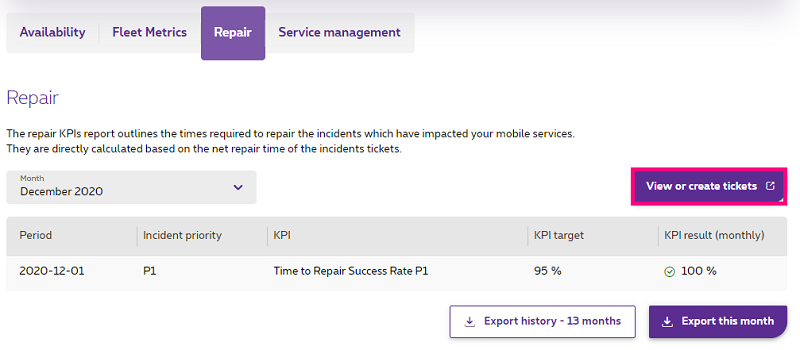
- Depending on the data you need, click on Export history – 13 months or Export this month.
Do you want to get an overview of tickets you have created or create new tickets? Click on the button View or create tickets. The Technical assistance application will open in a new tab.
For more info on how to create tickets, read request support on MyProximus Enterprise.
- Select the month for which you want to access Repair KPIs. You will see different KPIs like mobile data, voice, SMS etc. being shown for each site of your contract.
-
Service management reports will be sent to you by your Proximus contact.
Do you have any questions or issues? Don’t hesitate to contact us . We’re here to help.