- Open Outlook, go to File > Info and then click Add Account.
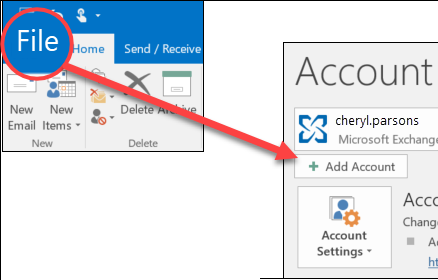
- Select Manually configure server settings or Additional server types and click Next.
- Select IMAP.
- Fill in the following fields:
- Your name and the e-mail address you want to add
- Account Type: select IMAP in the drop-down menu
- Incoming mail server: outlook.office365.com
- Outgoing mail server: smtp.office365.com
- User Name: enter the e-mail address again
- Password: the password for your e-mail address
- Click More Settings and go to the Advanced tab.
- Enter the port numbers and select the encrypted connections.
- Incoming mail server: 993
- Type of encrypted connection: SSL
- Outgoing mail server: 587
- Type of encrypted connection: TLS
- Click OK > OK > Next > Finish.
Outlook is ready for use! You can now send and receive e-mails.
Need more info? Find more instructions on Office Support. Or contact our staff: call or e-mail us.