View all guides
Wi-Fi Booster
Installation GuideBefore you begin
Make sure you have a b-box 3 or later, and check that the Wi-Fi indicator light is turned on on your b-box.
Required components for the installation
- The Wi-Fi Booster
- The power supply cable
- The Ethernet cable
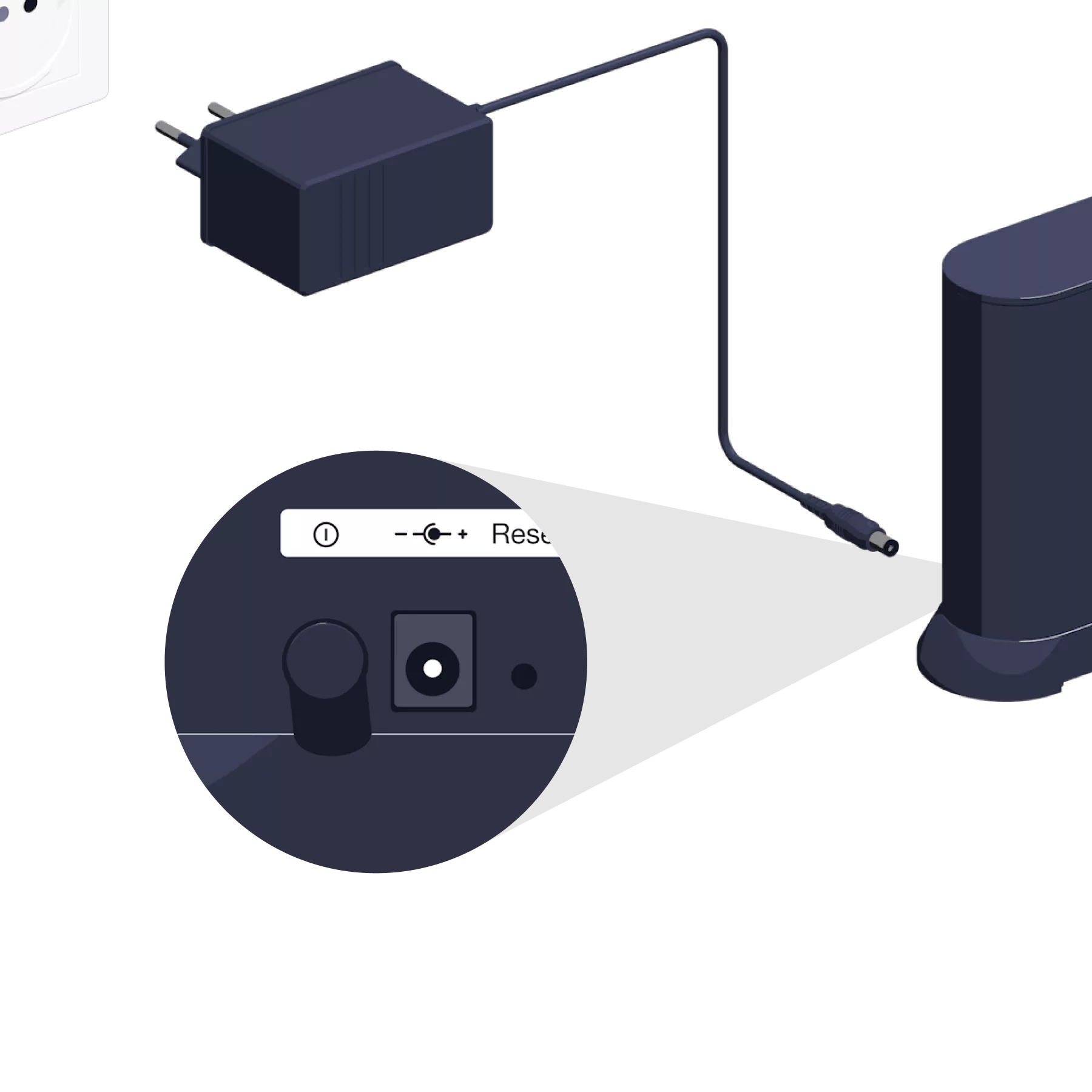
Check the button on the back of the Wi-Fi Booster
The button is set to AUTO.

Switch on the Wi-Fi Booster
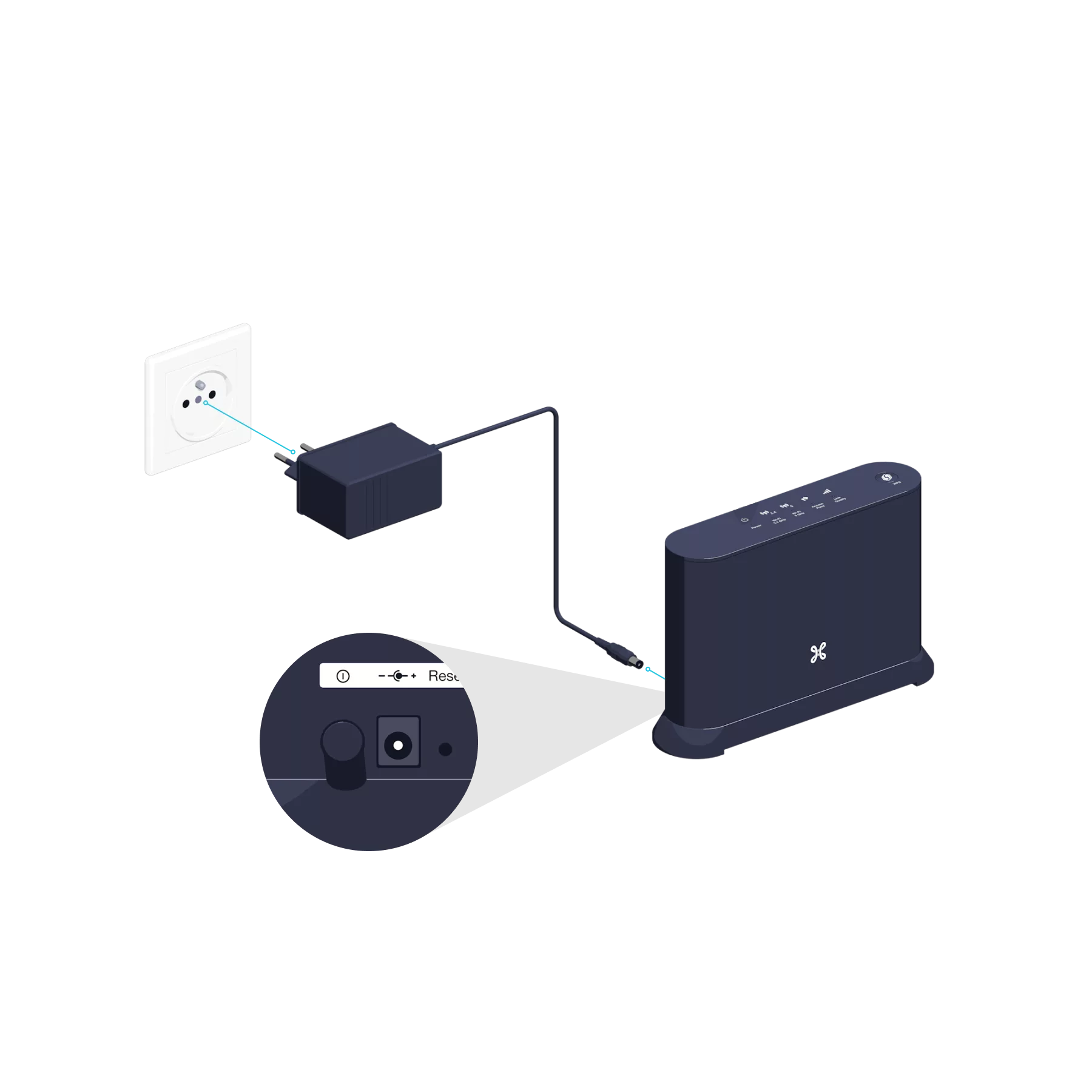
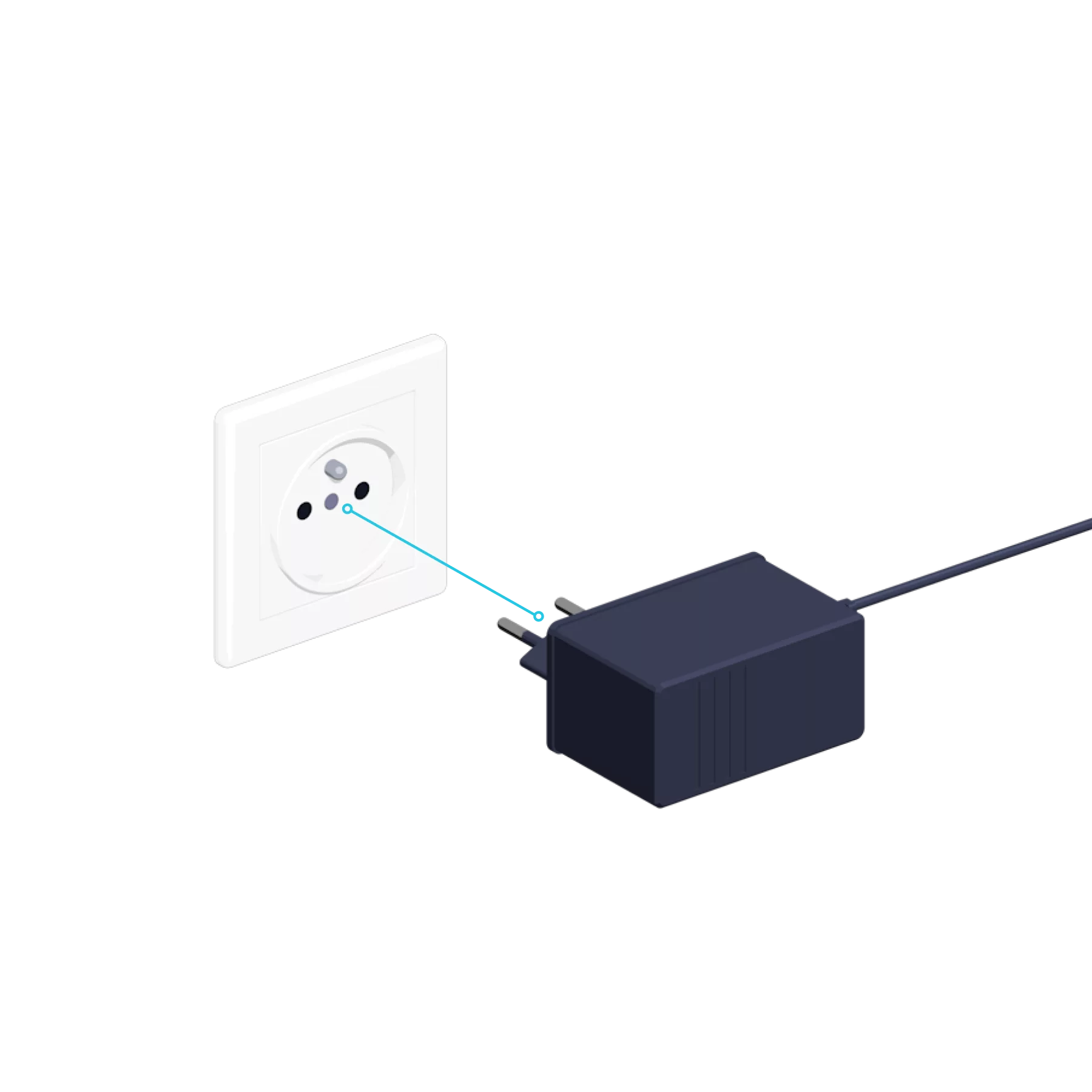
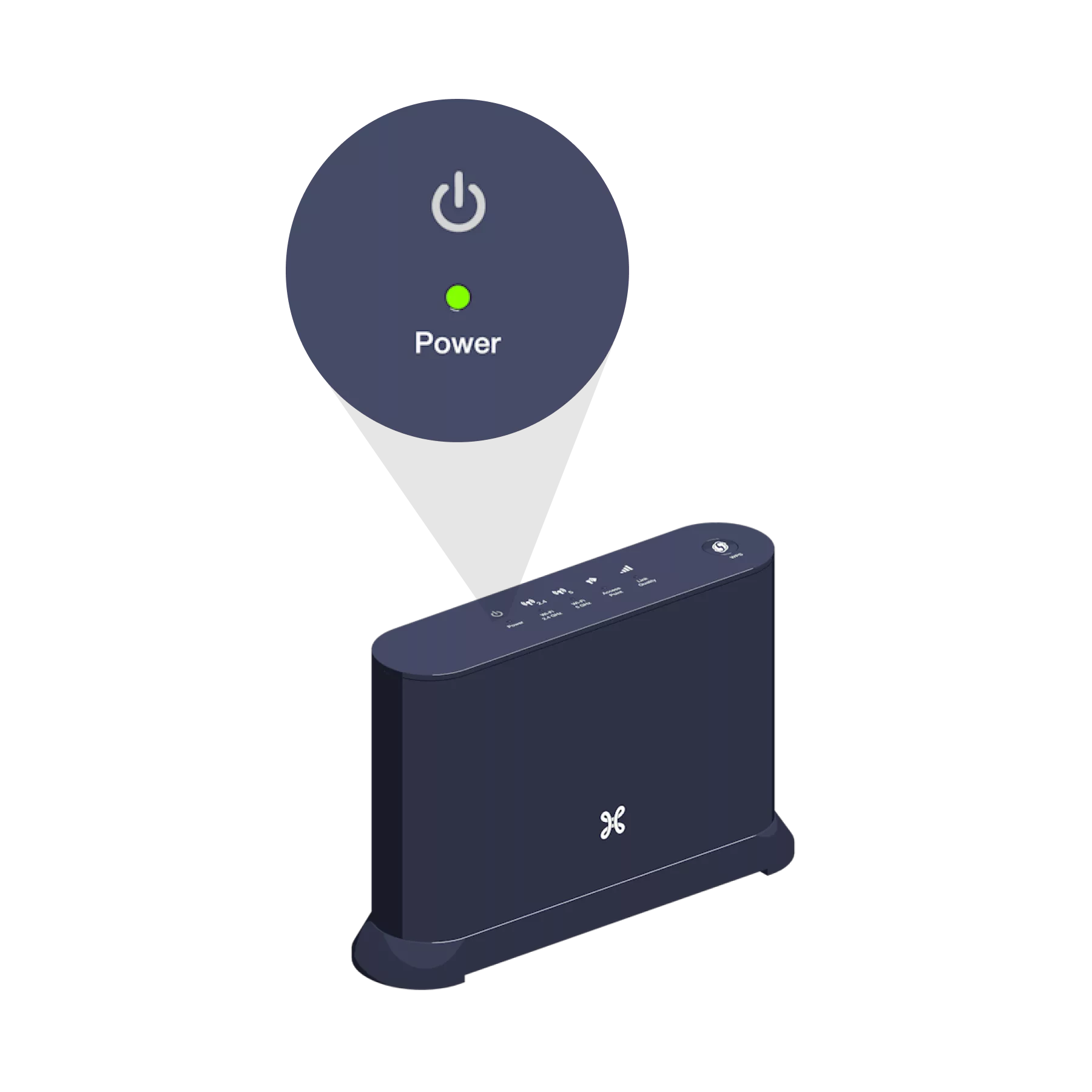
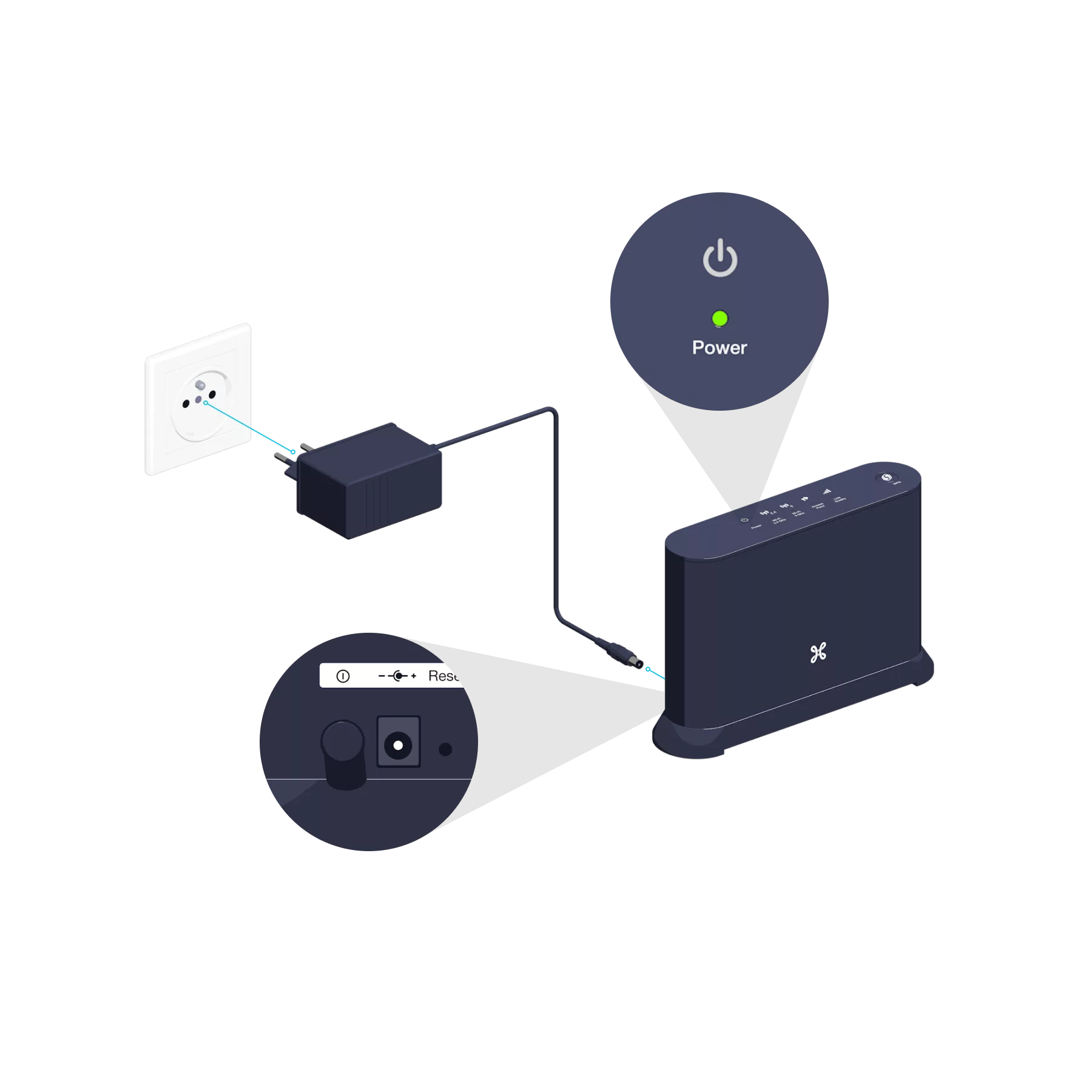
Connect the Wi-Fi Booster’s power cable to a power socket in the same room as the b-box. Press the POWER button; the indicator light will turn green.

Please wait one minute for the WPS indicator light to go out.
Synchronize the b-box’s Wi-Fi with the Wi-Fi Booster
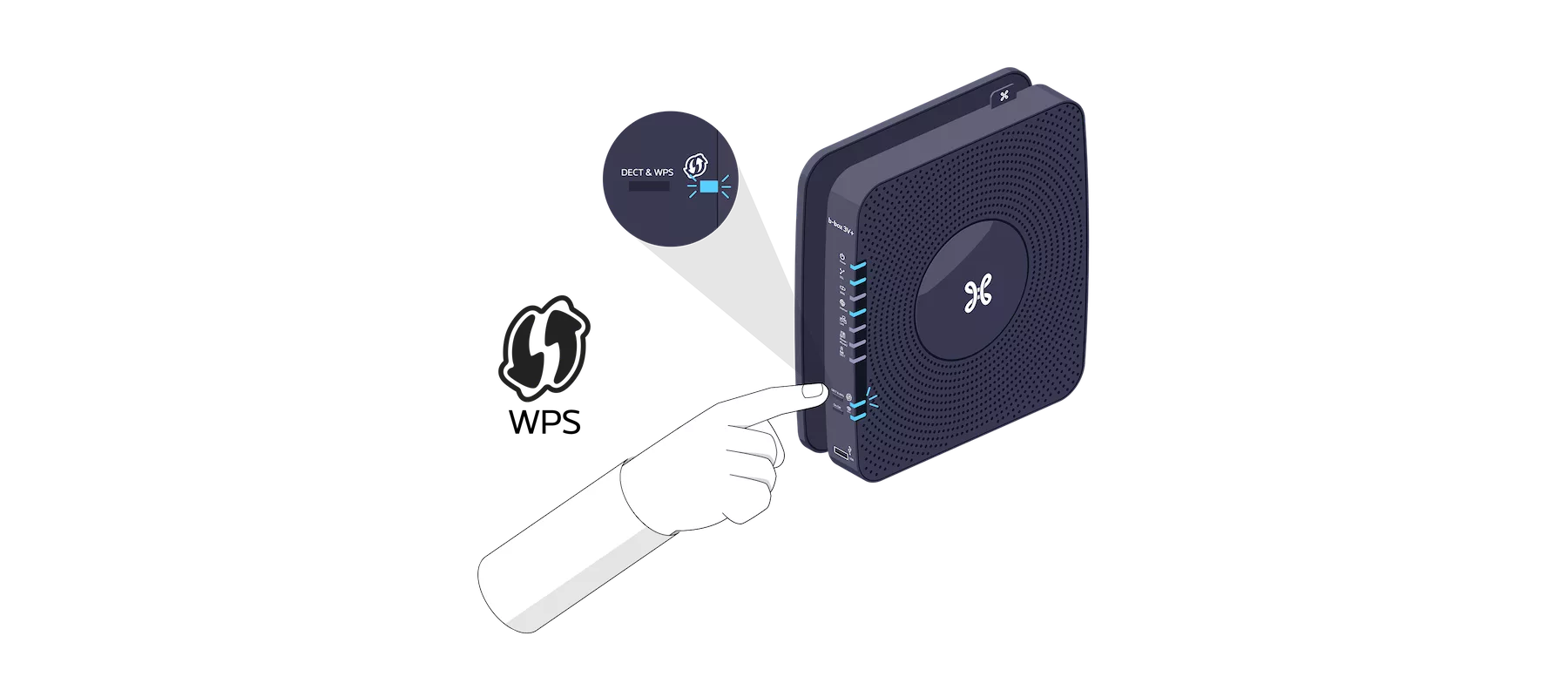
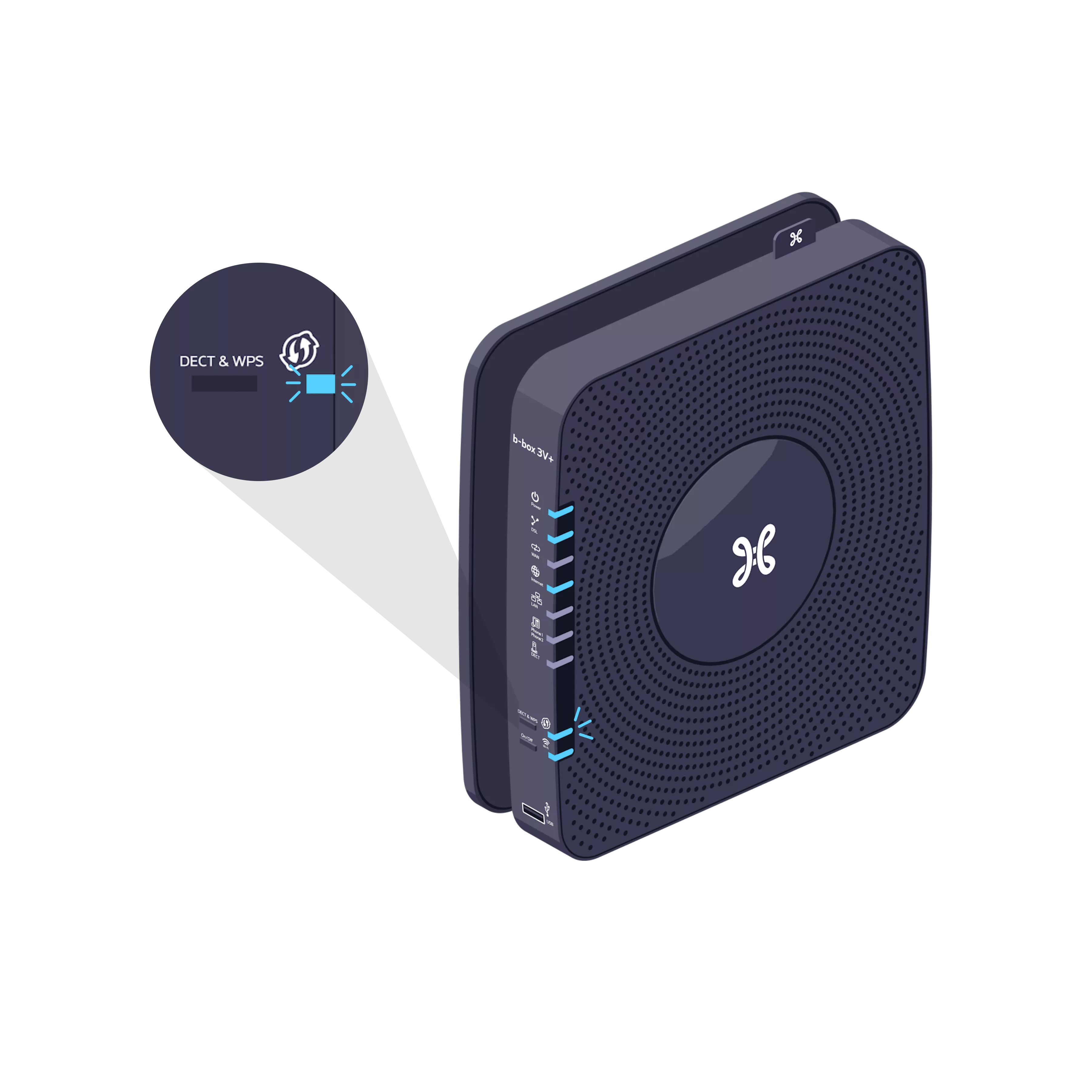
Press and hold the WPS button on your b-box for 2 seconds.

The WPS synchronisation indicator light is flashing.
Within 2 minutes, press the WPS button on the Wi-Fi Booster.
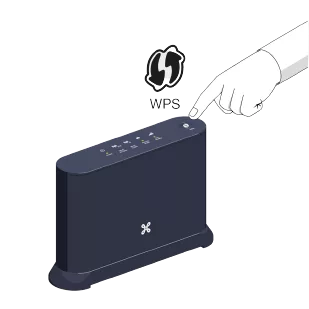
The indicator lights for both devices will flash and then go out after a few moments.
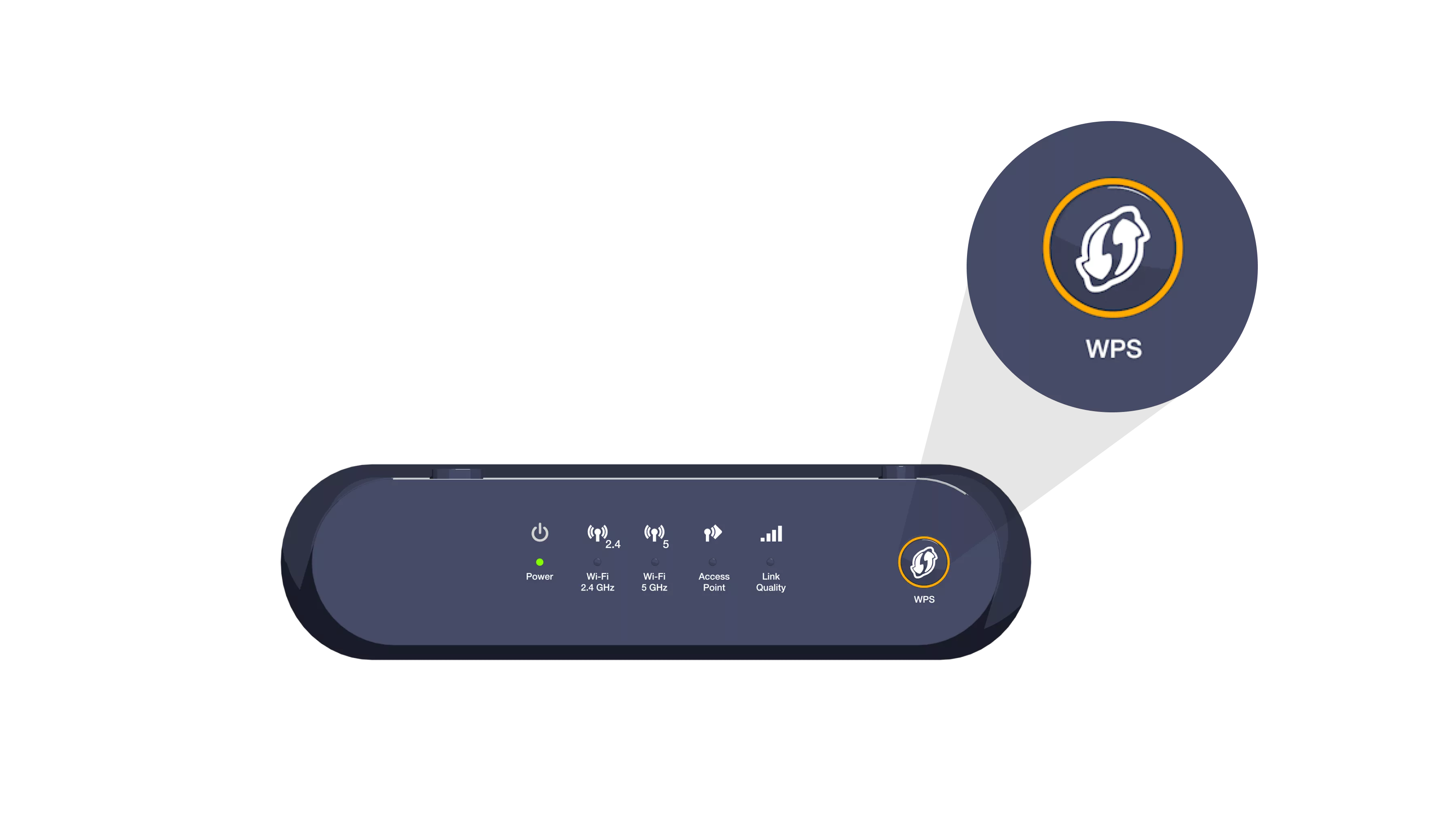

Once synchronization is complete, the Link Quality indicator light remains turned on.
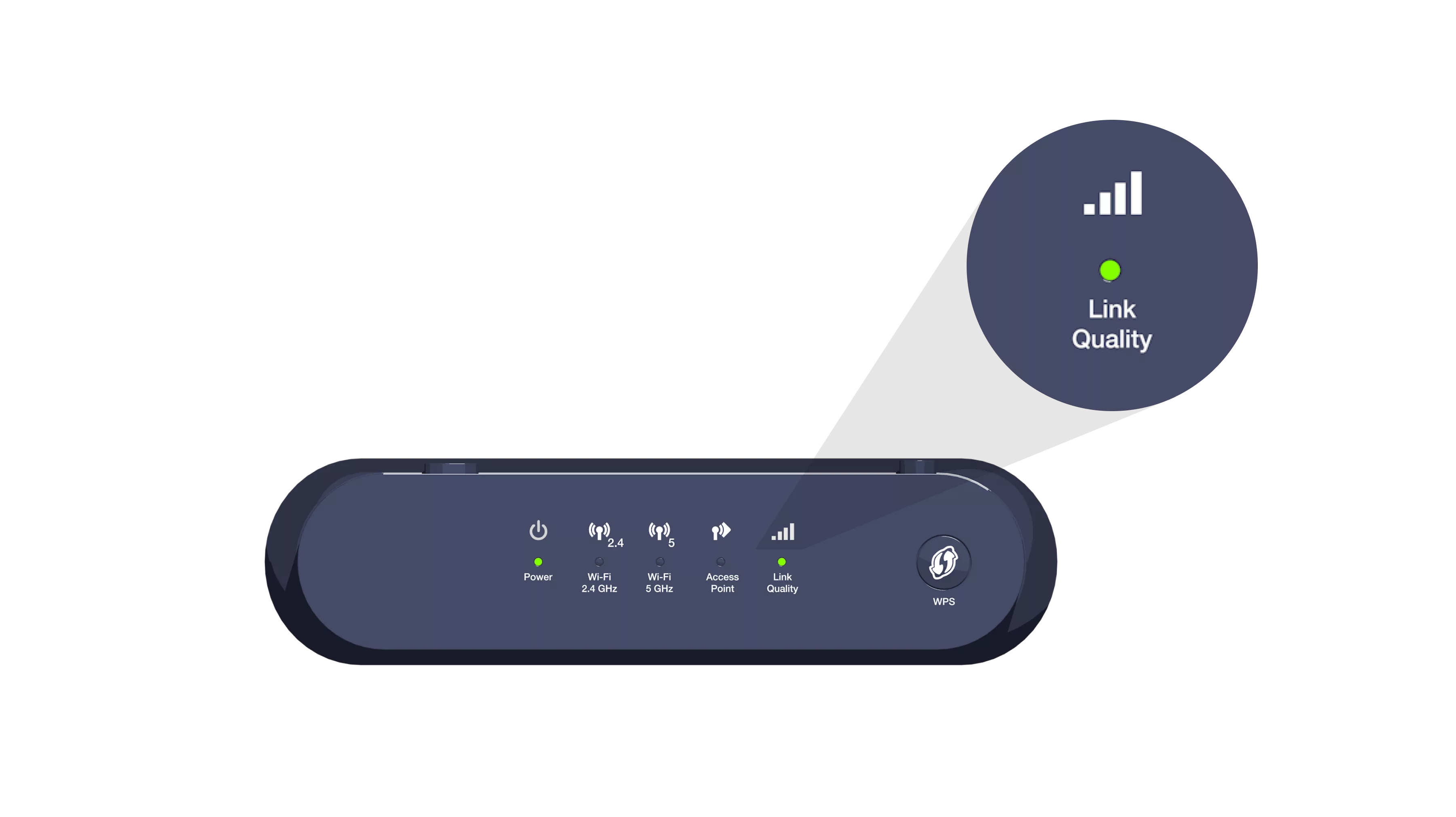
You can unplug your Wi-Fi Booster and place it in any room you like.
Connect the Wi-Fi Booster to the b-box
Use the Ethernet cable and connect one end to one of the yellow Ethernet ports on the back of the Wi-Fi Booster. Connect the other end of the cable to an Ethernet socket in your home. Make sure that this is properly connected to the b-box.
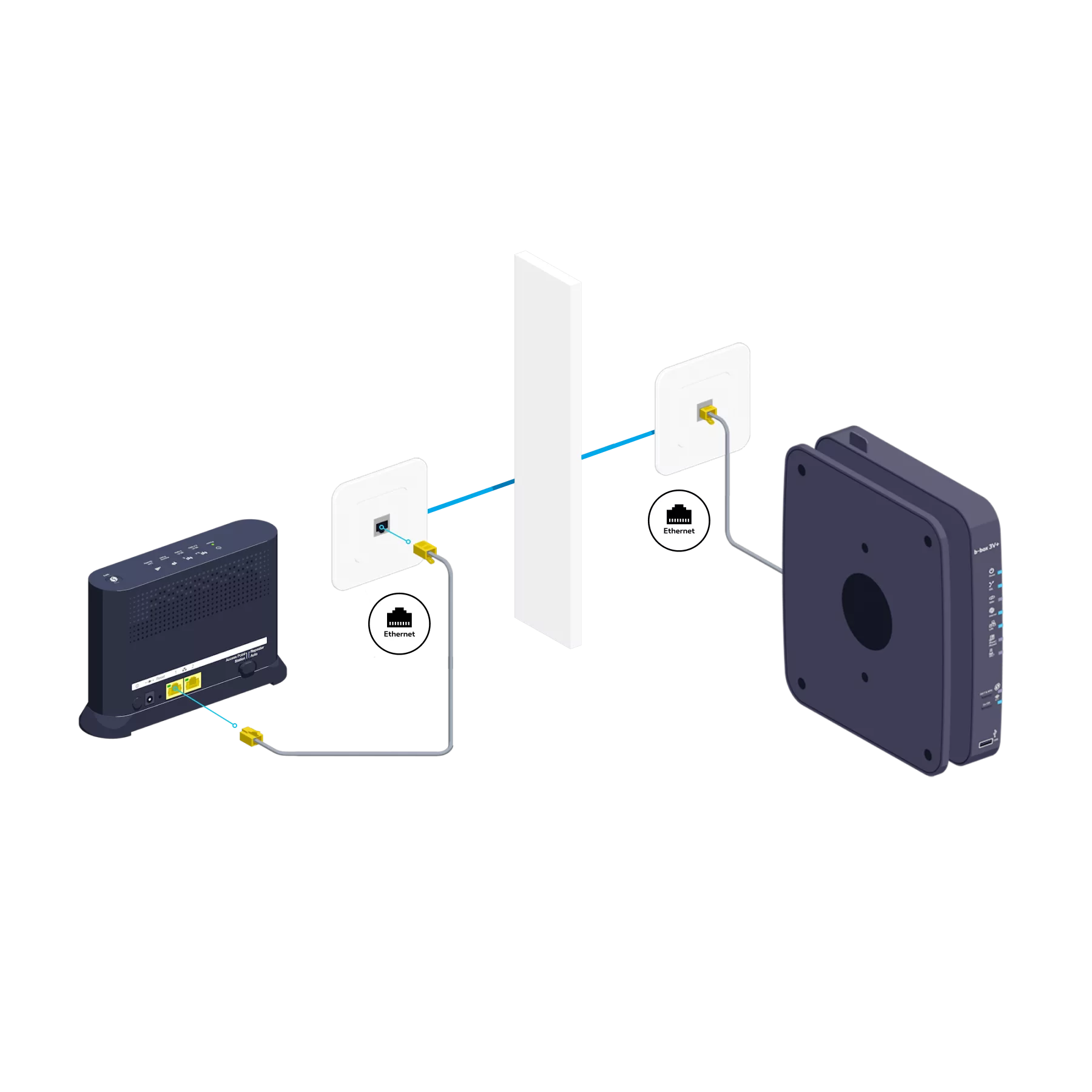
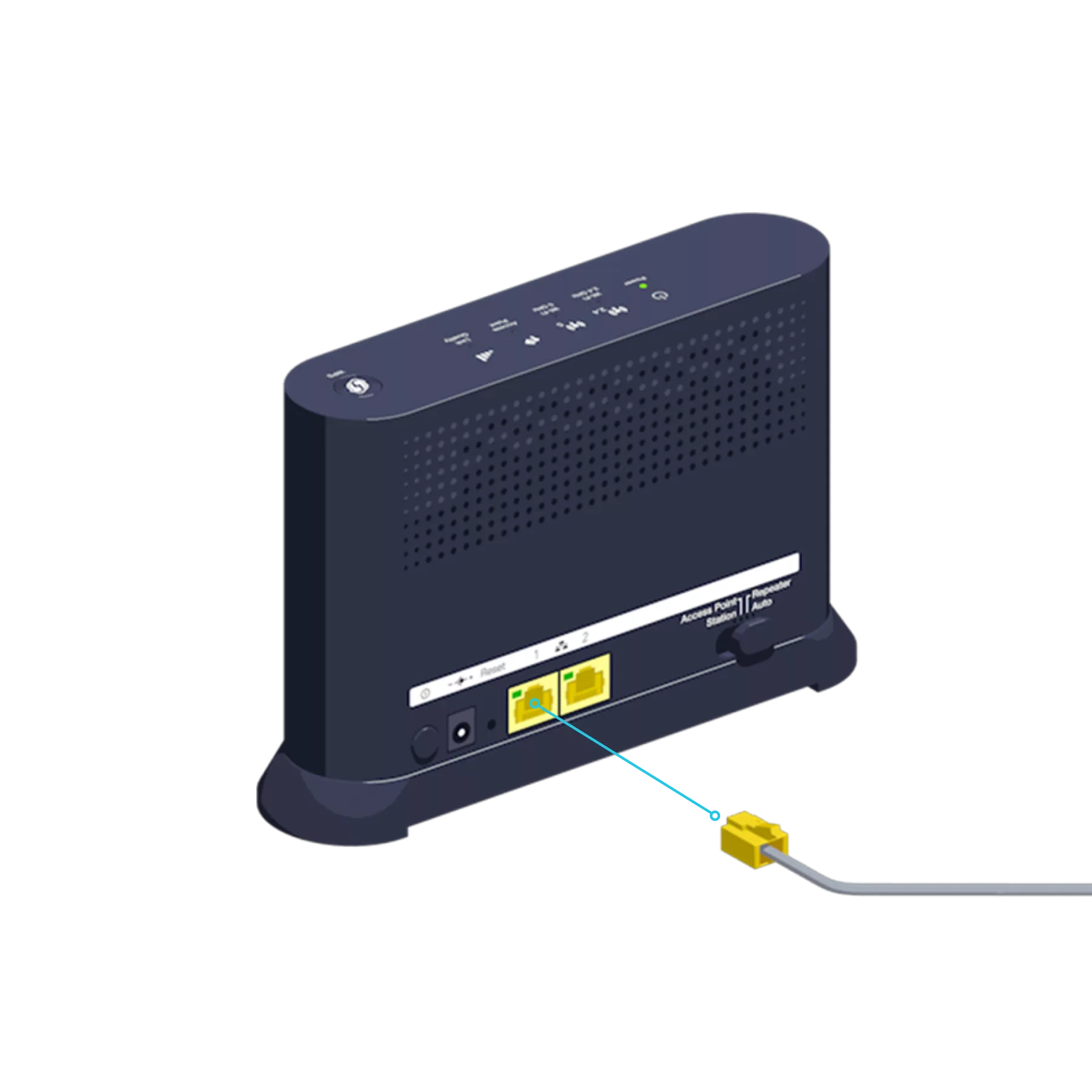
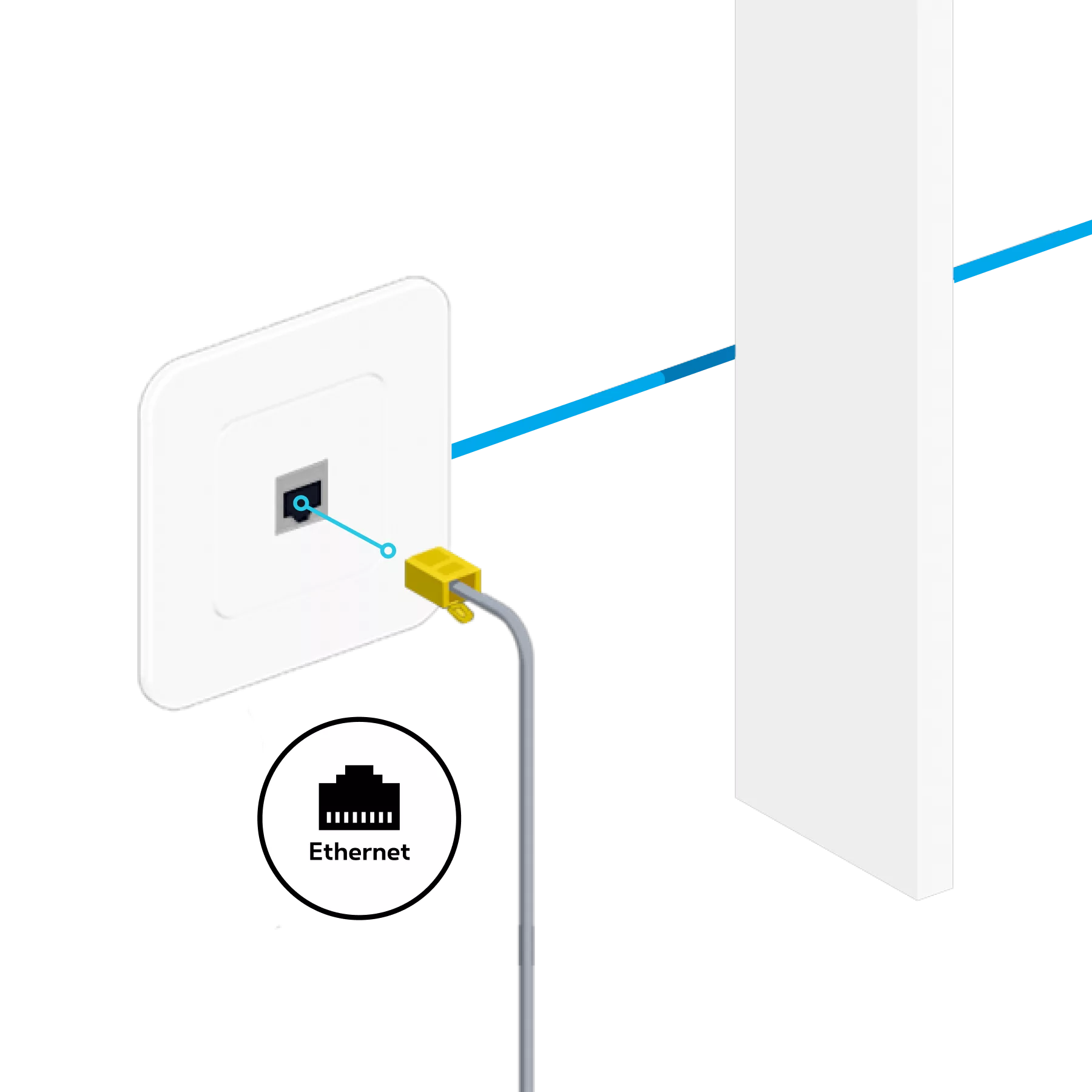
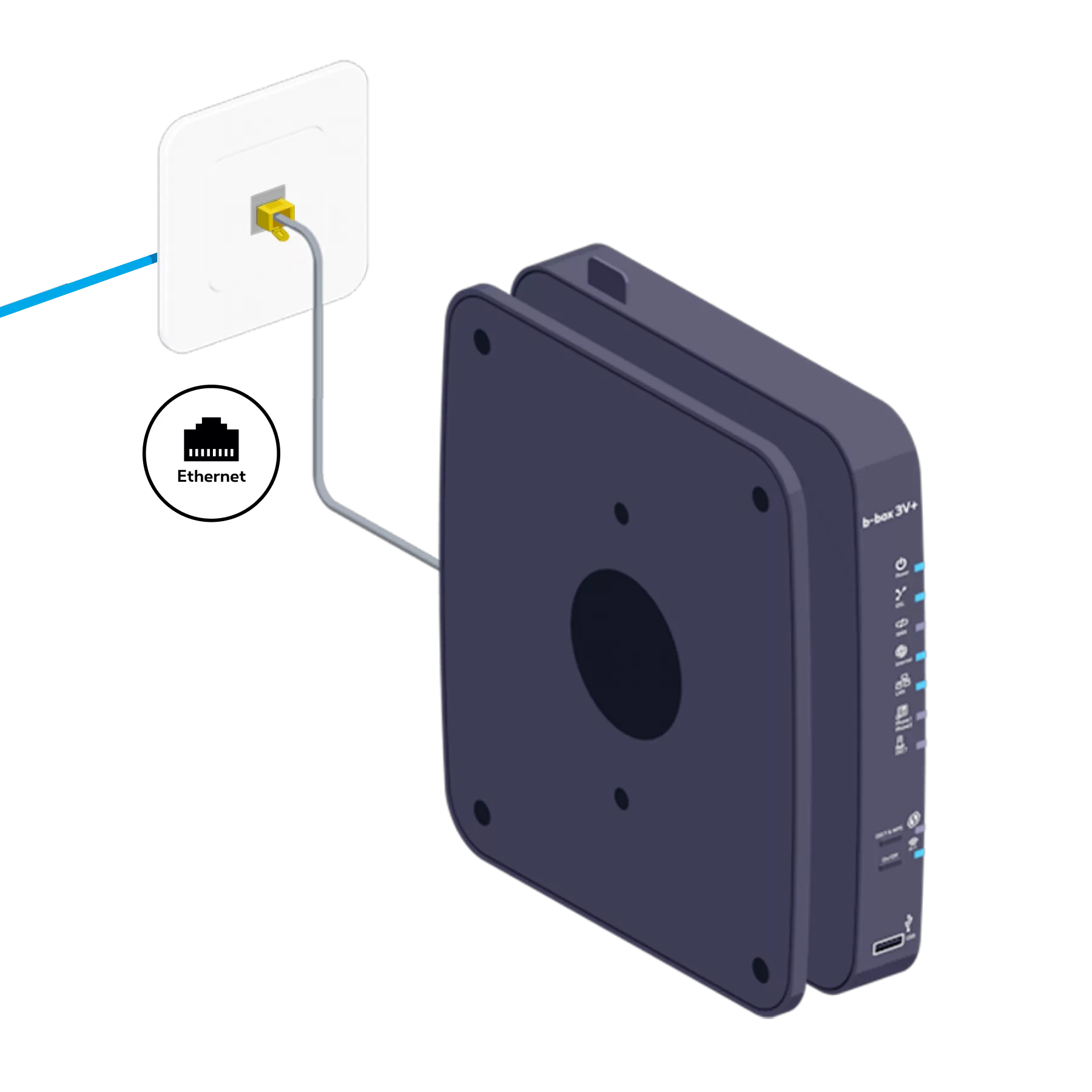
-
You’re free to connect other devices to the other free yellow Ethernet port on the Wi-Fi Booster: a games console, Blu-ray player, computer or a TV Box.
Switch the Wi-Fi Booster back on
Connect the Wi-Fi Booster’s power supply cable to the power socket. Check that the POWER button is pressed down.


The indicator lights turn green.
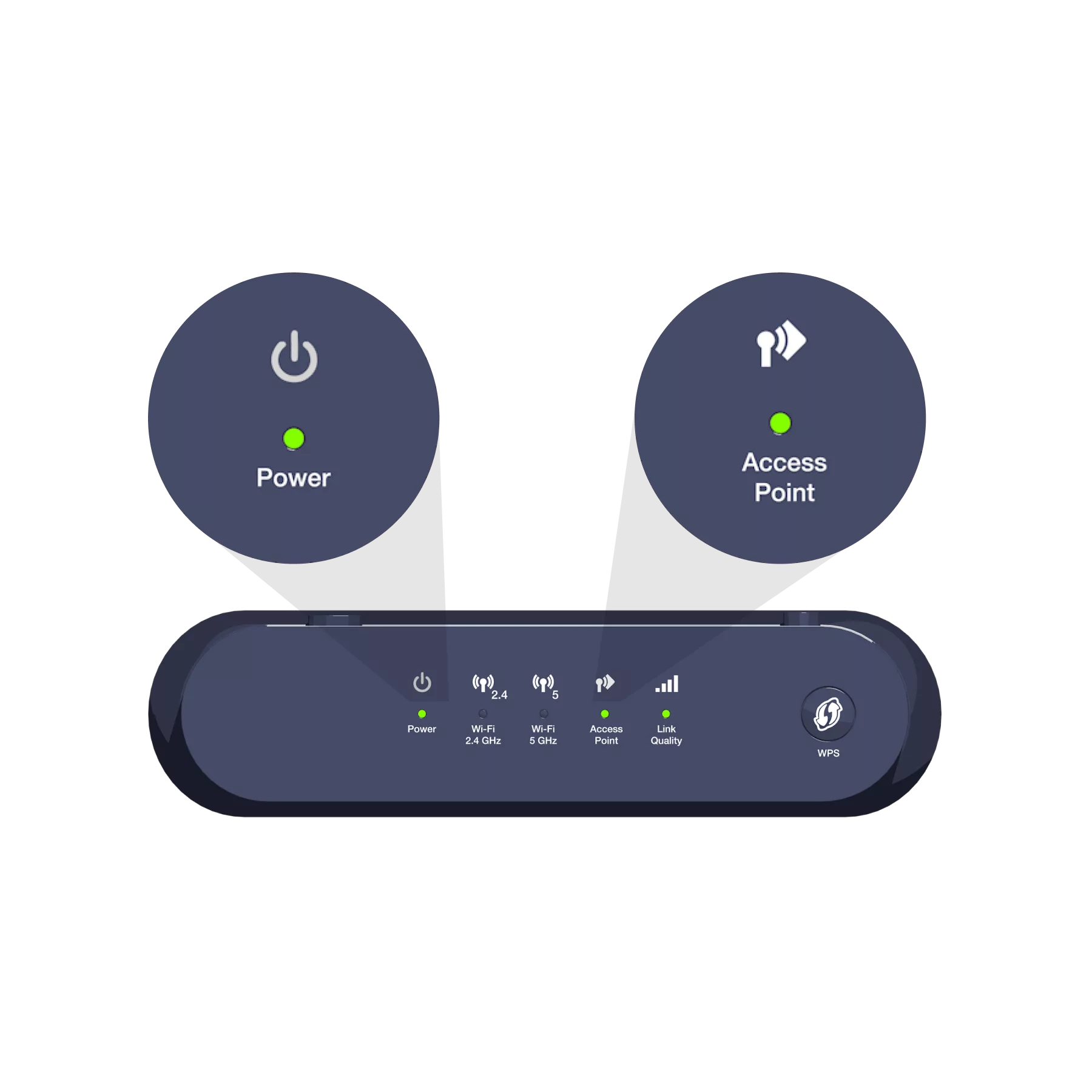
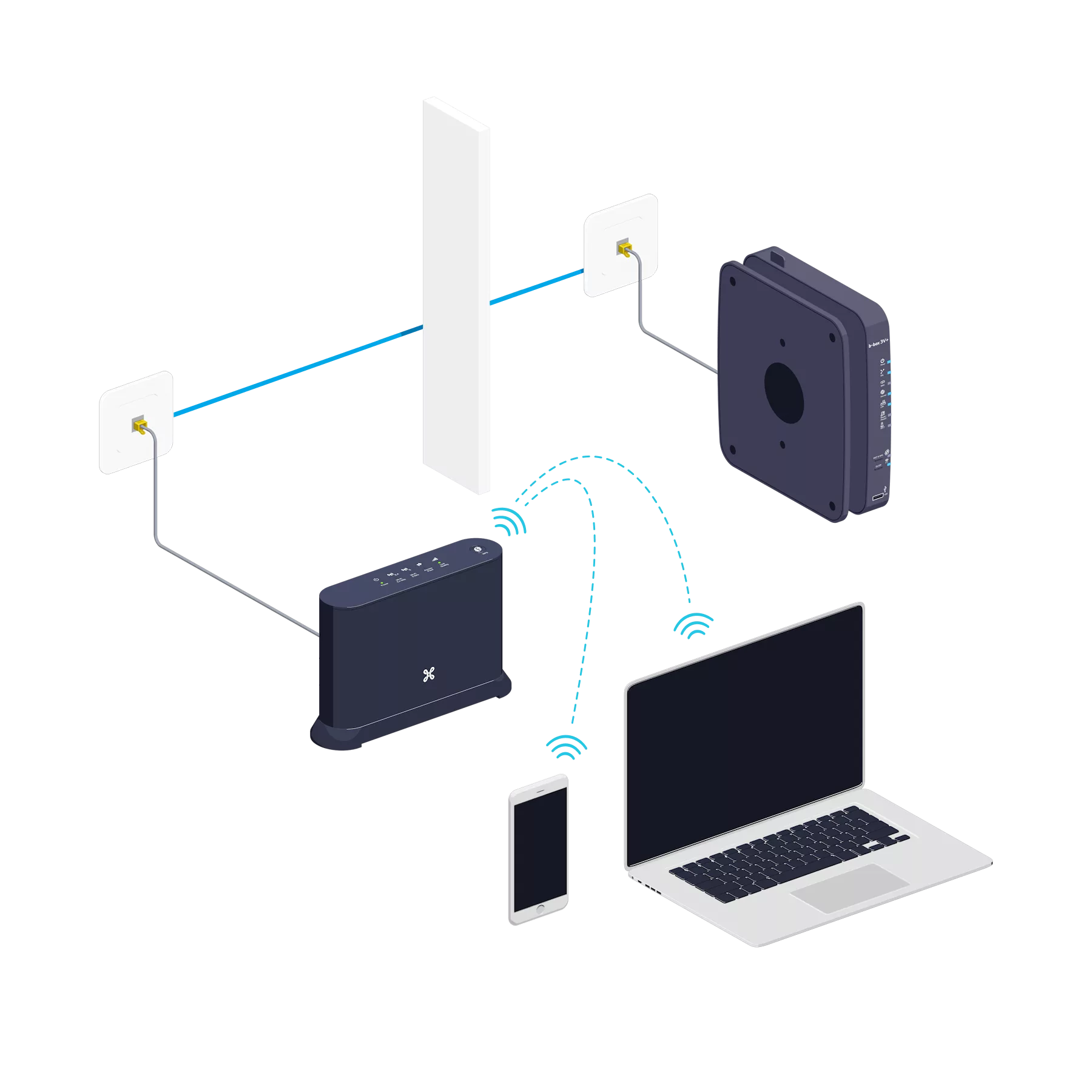
-
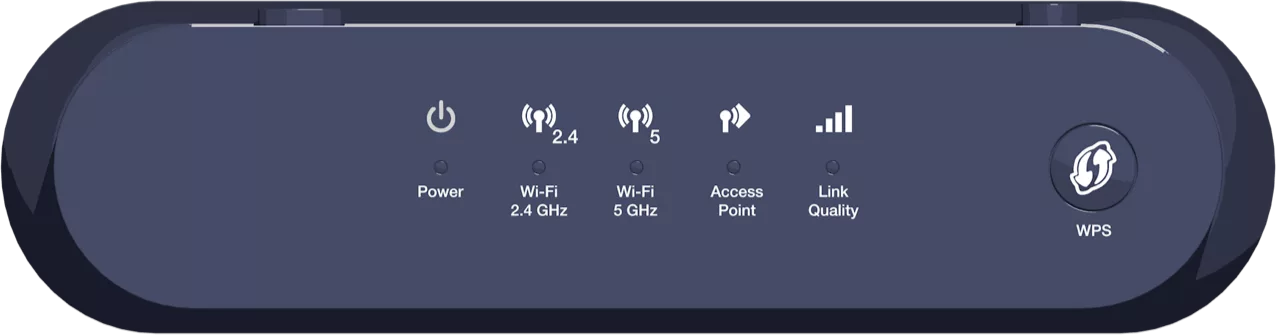
 The device is turned on.
 A device using Wi-Fi logs in to the Wi-Fi Booster’s Wi-Fi network.
 The device is configured to extend the Wi-Fi network at home.
 Indicates the quality of the received signal.
- Green: optimal signal.
- Orange: acceptable signal.
- Red: poor signal. You will need to move the device or use a second one to boost the signal.
 Indicates the synchronisation status between the transmitter and the receiver.
- Steady green: the installation was successful.
- Flashing orange: an operation is in progress.
- Steady orange: the device is starting up.
- Red: synchronization has failed.
There you go, you can now use the Wi-Fi!
Would you now like to: