View all guides
b-box 3
Installation GuideBefore you begin
Please check carefully that you only have one 5-pole socket in your home.
If this is not the case, you should have a DSL connection socket.
Required components for the installation
- The b-box 3
- The power supply cable
- The adapter
- The DSL splitter
- The DSL cable
- The Ethernet cable
The model of the devices/accessories may differ from the illustrations. If you have received this product as part of an exchange or following installation by a technician, you will already have the b-box or the accessories required for it to work. Do you need additional equipment for the installation (cables, etc.)? Please visit a Proximus point-of-sale outlet.
-
Please ensure you use the new power cable supplied.
Connect the adapter and the filter
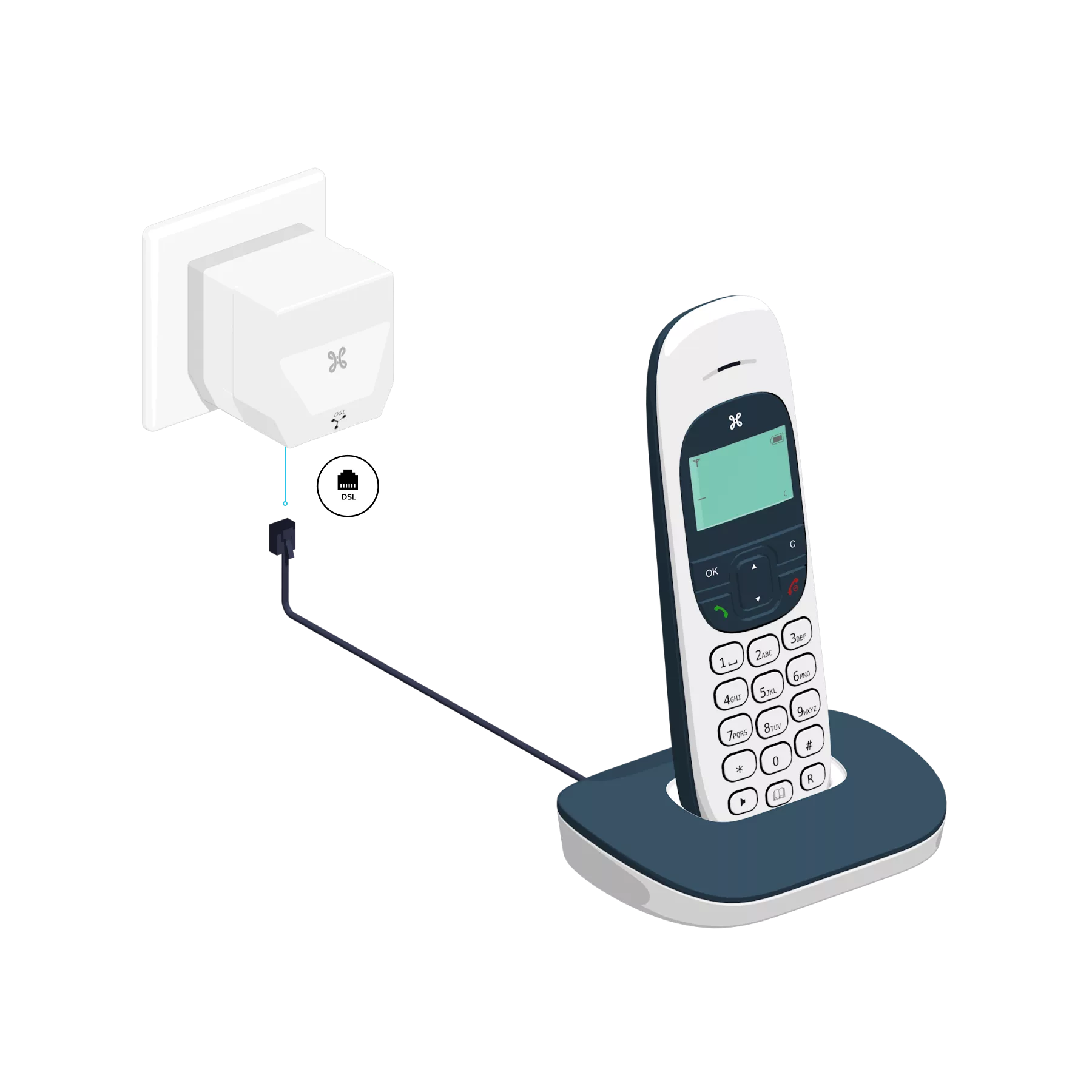
Unplug any existing equipment or filters from your socket and plug in the Adapter first, followed by the DSL splitter.
-
In this case, check the position of the buttons on the back of the DSL splitter: they must be positioned fully upwards.
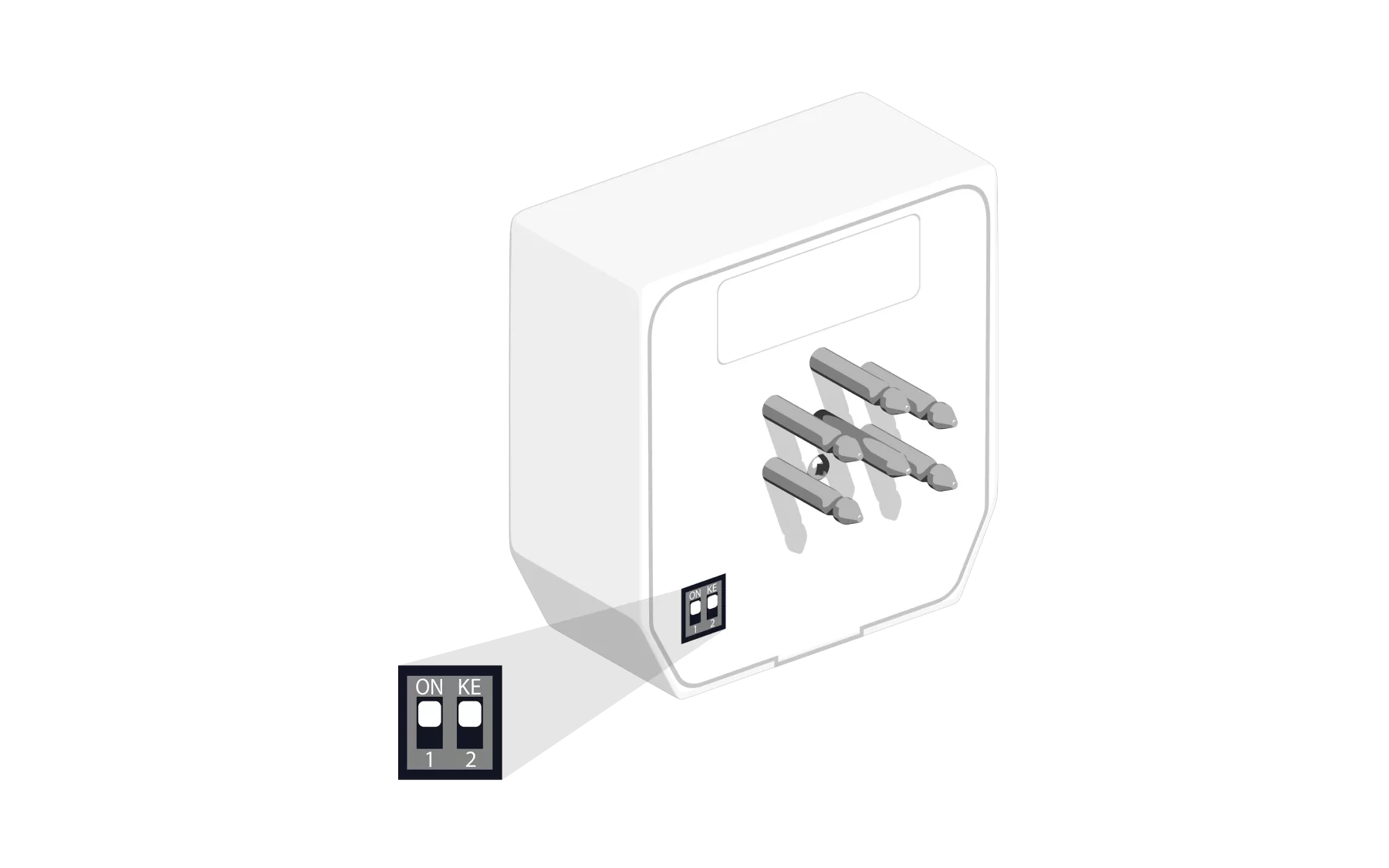
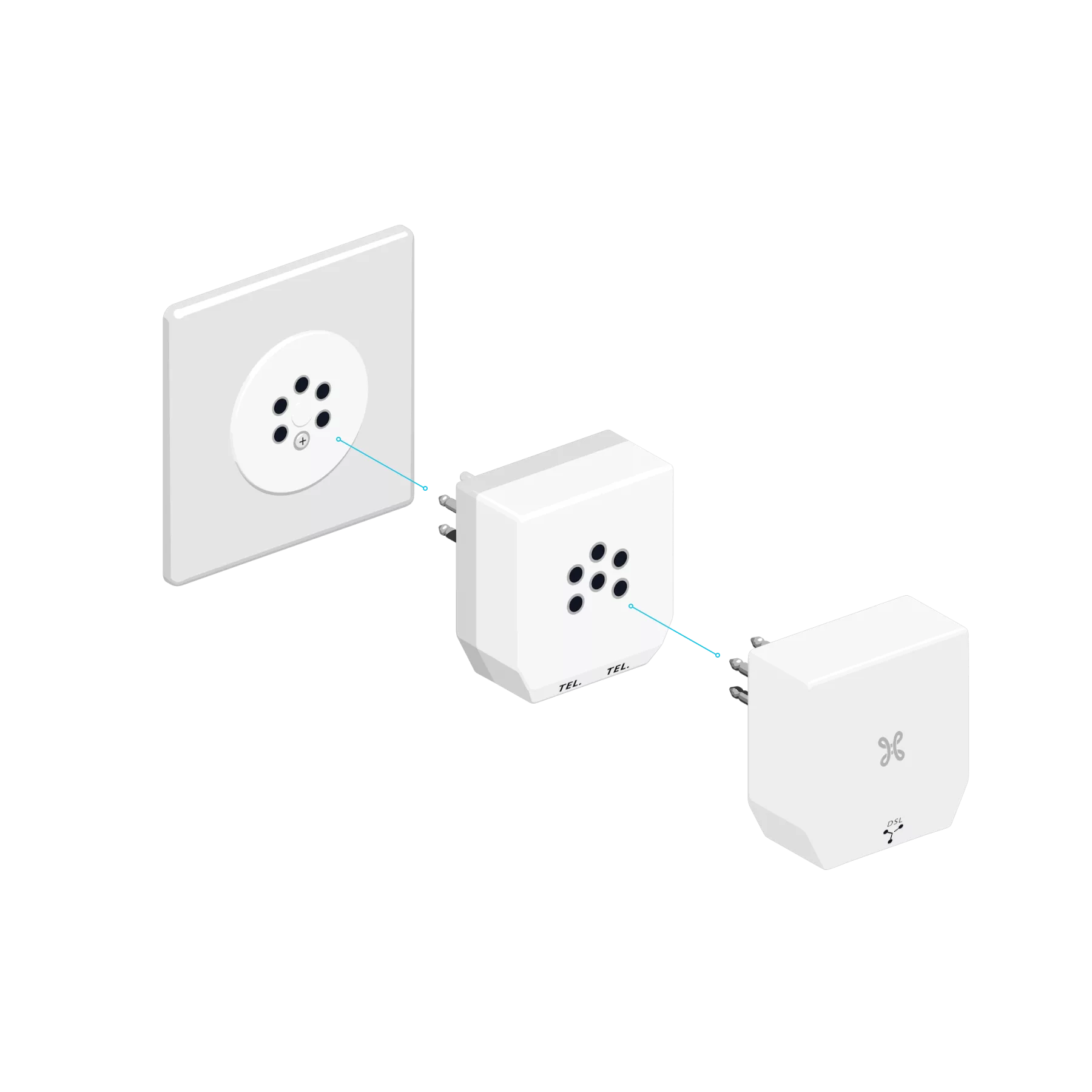
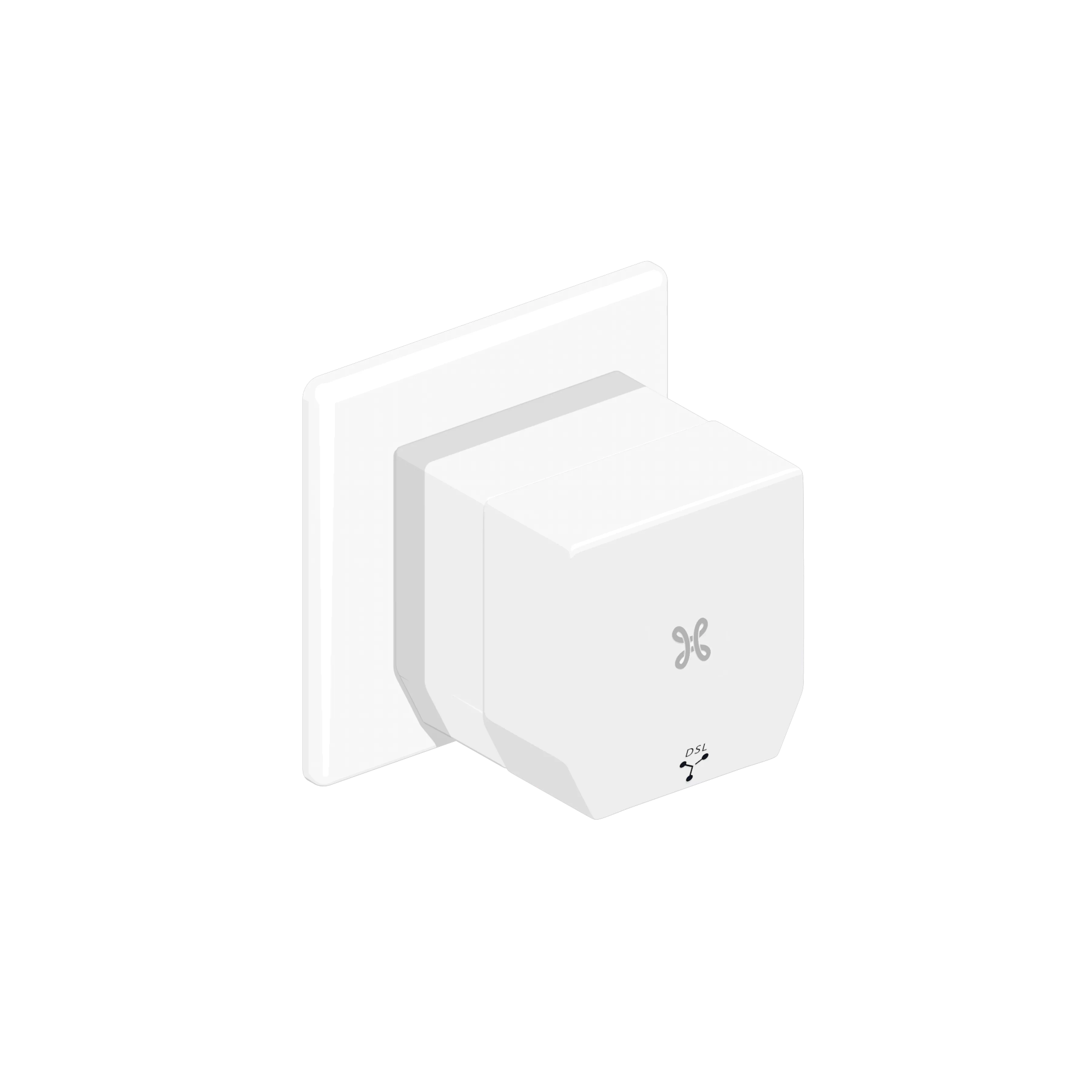
-
You can then connect a telephone by plugging the telephone lead into one of the two “TEL” ports on the Adapter.
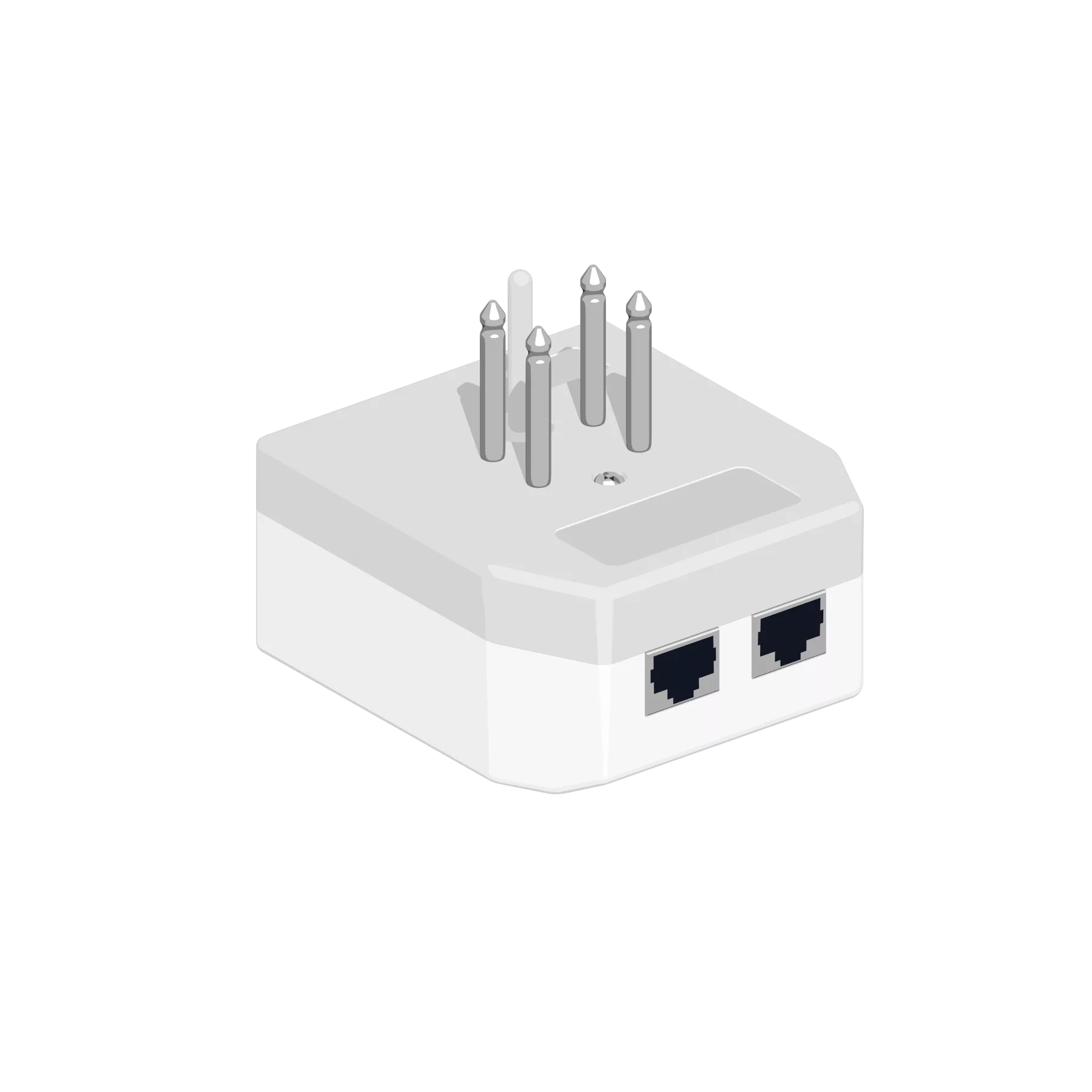
Connect the b-box to the filter
Use the DSL cable and connect it to the blue DSL port at the back of the b-box.


-
- Turn it clockwise to separate it from its base.
- Screw the base to the wall.
- Then reattach the b-box to the base.


-
Don’t want to trip over cables, or are your b-box and TV Box too far apart? Don’t panic – check out our wireless solution!
Switch on the b-box
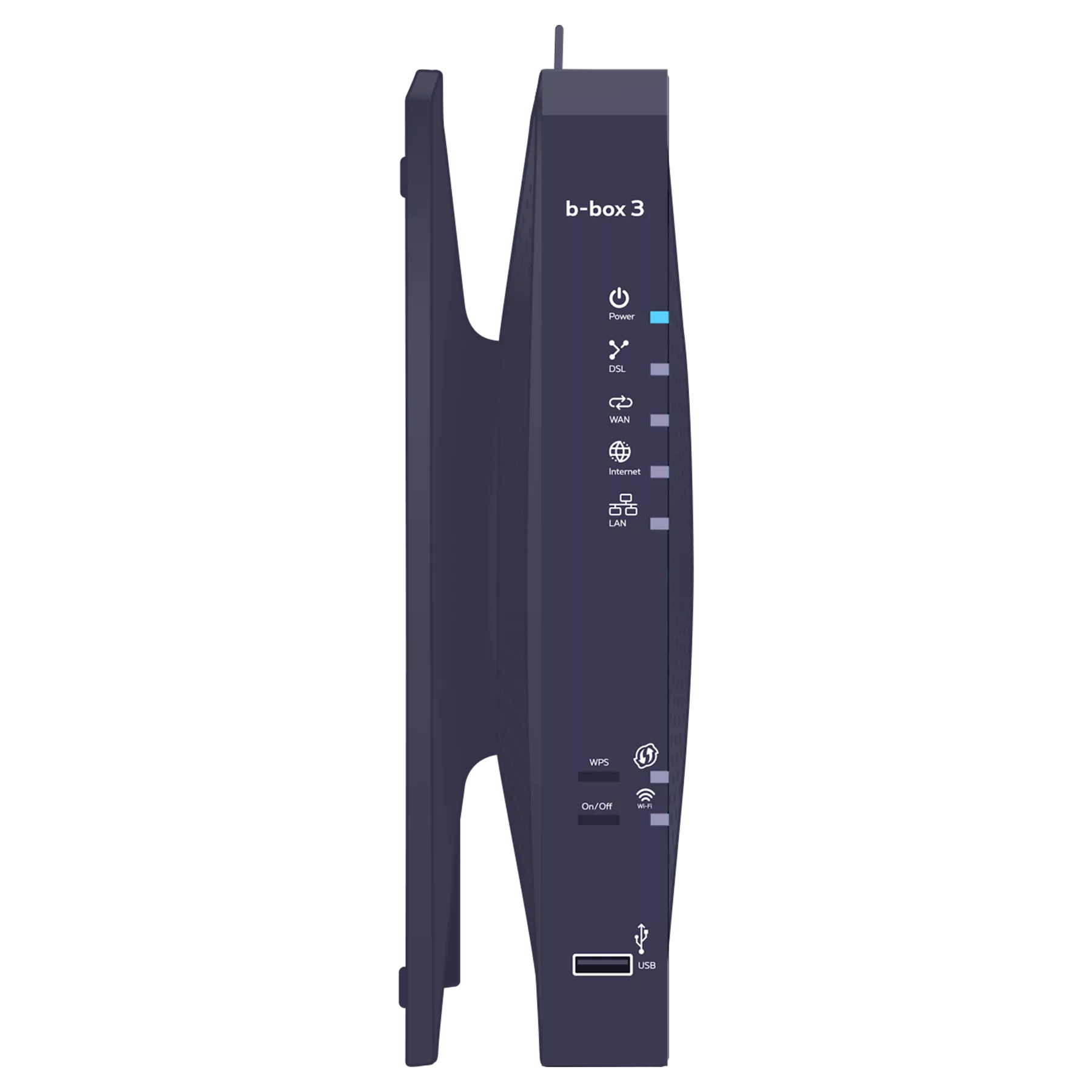
Connect the power cable to your b-box and to a power socket. The switch should be in the ‘I’ position and the ‘POWER’ indicator light on the front will turn on.


Configuration and automatic updates for the b-box

Configuration time: 30 minutes maximum
Once the indicator lights below are turned on, you can proceed with setting up your TV Box, computer or other devices.
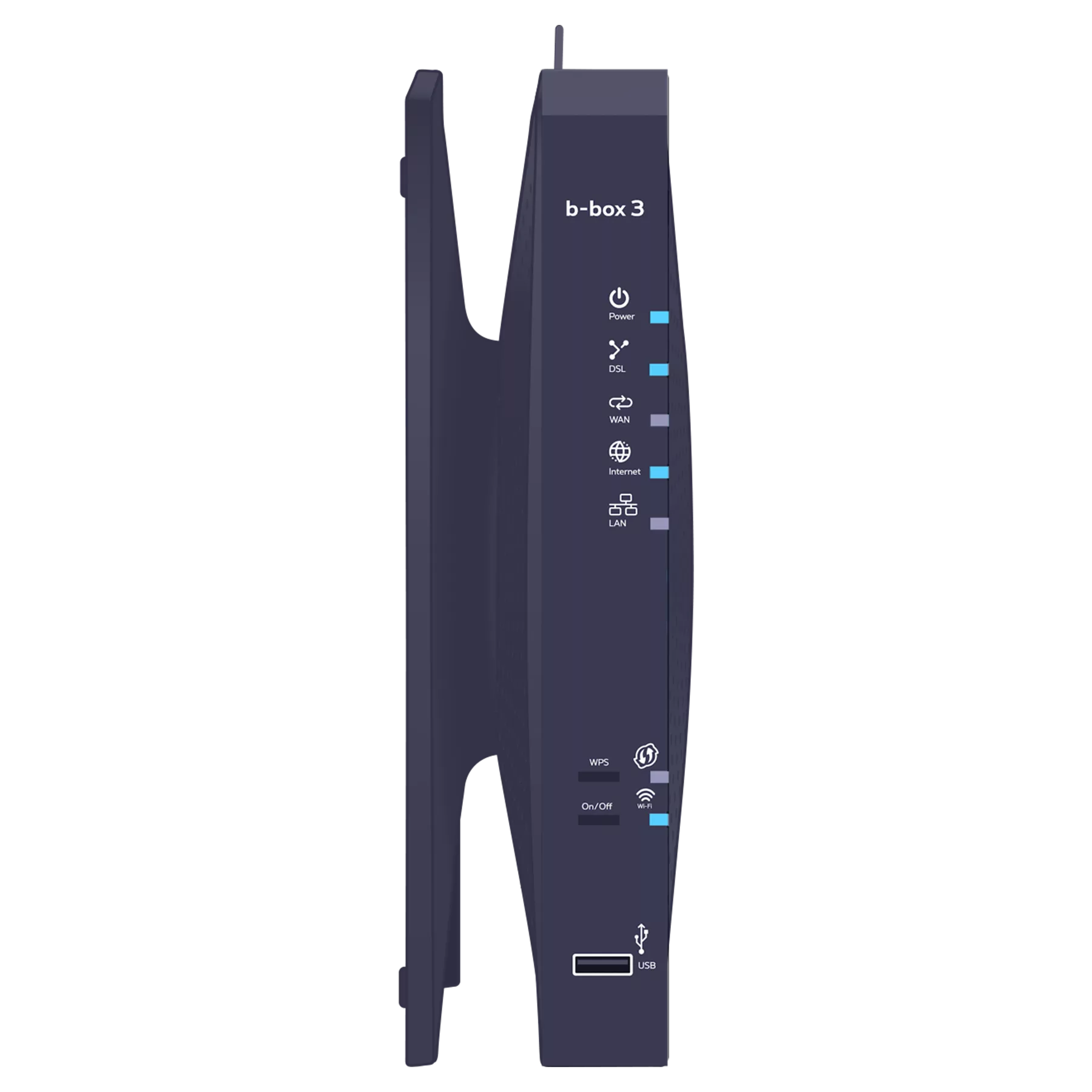
Various indicator lights will turn on depending on the services you have ordered.
-
- Is this your first time connecting to Pickx and/or Internet? You’ll need to wait until the service is activated.
- Is this not your first time connecting to Pickx and/or the Internet? Check that the DSL cable is properly connected to your b-box and the wall socket.
-
 Solid blue light: the b-box is turned on.
 Solid blue light
: the b-box is synchronized.
Flashing blue light
: synchronization is in progress (max. 3 minutes). Solid blue light: there is an Internet connection.
 Solid blue: at least one LAN port is in use.
 Flashing blue: indicates that WPS pairing is possible with another WPS-enabled Wi-Fi device (max. 2 minutes).
 Solid blue: Wi-Fi is connected.
That’s it – your b-box is now configured!