Menu
View all guides

Wi-Fi Booster v2

Installation Guide
Step 1

Before you begin

Make sure you have an Internet Box+ and simply check that the Wi-Fi indicator light is turned on.
My Wi-Fi Booster
My Internet Box
Select the type of Internet Box you wish to install.
Installation type
Select the type of configuration you wish to set up.

Required components for the installation


Step 2

Switch on the Wi-Fi Booster

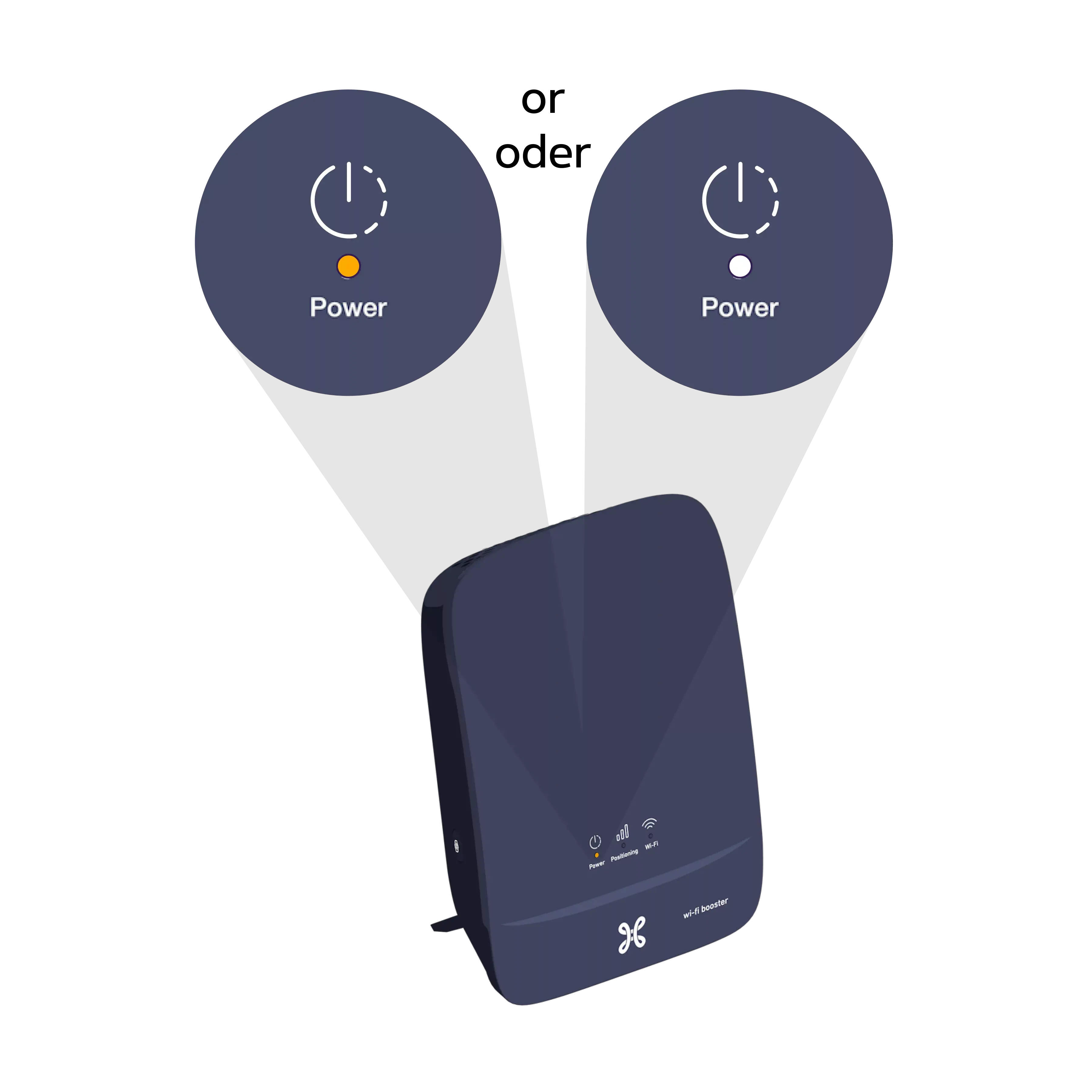
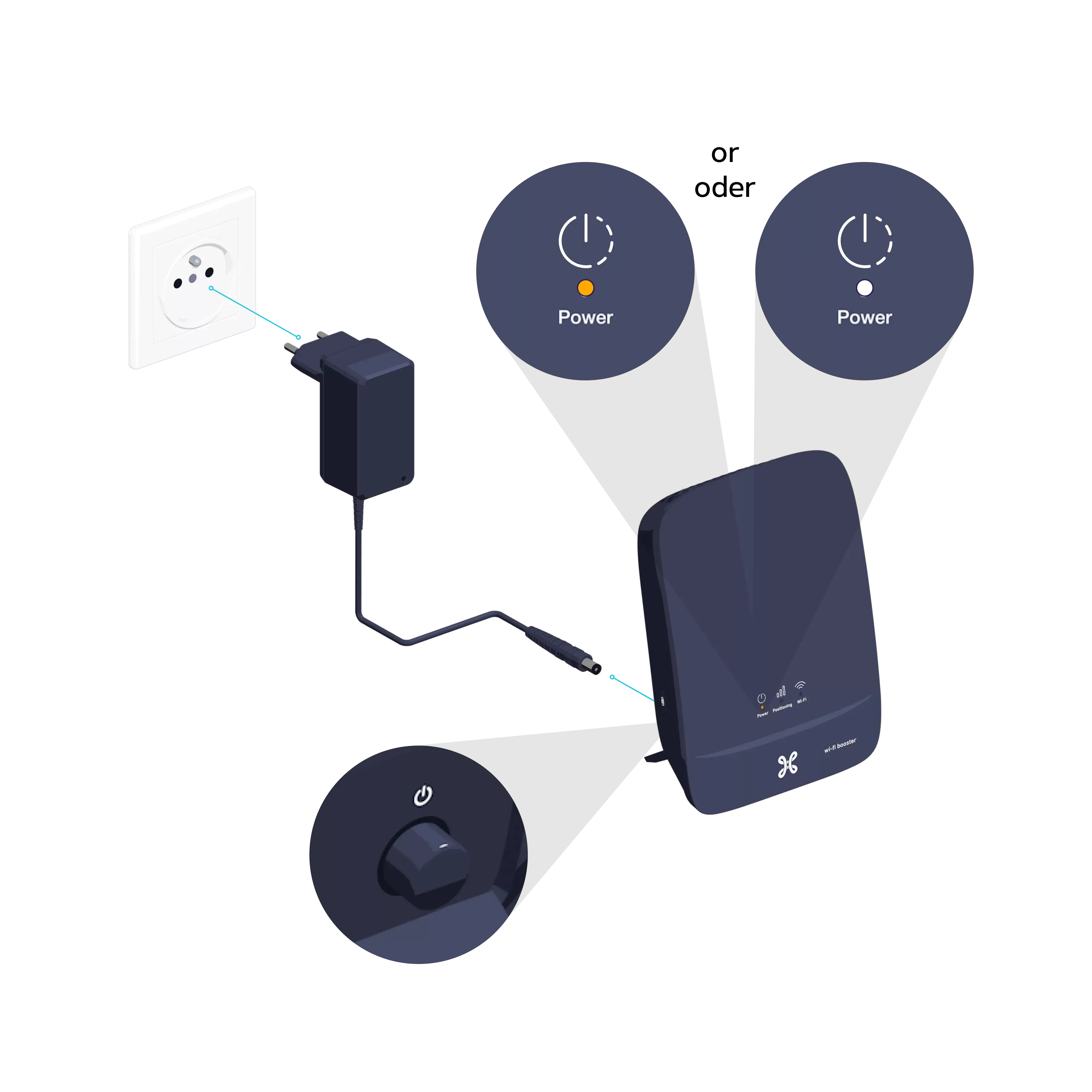
Connect the Wi-Fi Booster’s power supply cable to a power socket in the same room as the Internet Box+. Press the POWER button; the indicator light will turn orange or white.

Step 3

Synchronize the Internet Box+ Wi-Fi with the Wi-Fi Booster

On your Internet Box+, briefly press the WPS button. The Wi-Fi indicator light will turn white.
On the Wi-Fi Booster, press the WPS button until the Indicator light
flashes white. This may take up to 10 seconds.
Once synchronization is complete, the indicator light
turns green.
You can unplug your Wi-Fi Booster and place it in a central position between the Internet Box and the device that needs to receive the Wi-Fi signal.
Ideally
, place it
  • more than one metre above the floor
  • in an open space, on a piece of furniture for example
  • ideally without too many obstacles between the Wi-Fi Booster and the Internet Box+: concrete walls, ceilings, mirrors, doors and closed cupboards can weaken the Wi-Fi signal

Step 4

Switch the Wi-Fi Booster back on

Connect the Wi-Fi Booster’s power cable to the power socket.

Check that the POWER button is pressed down.
The Wi-Fi indicator lights
and Power
turn blue.
The Positioning indicator light
turns green.


If the indicator light
is not green, move the Wi-Fi Booster closer to the Internet Box+ to ensure the best possible signal.
You’re free to connect other devices to the other free yellow Ethernet port on the Wi-Fi Booster: a games console, a Blu-ray player, a computer or a TV Box.
  • Blue: the Wi-Fi Booster is turned on.
  • Purple: the Wi-Fi Booster is starting up.
  • Blinking white: Connecting to the internal network. This may take a few minutes.
  • Flashing orange: the Wi-Fi Booster has started up but is not yet configured.
  • Blue: the Wi-Fi Booster’s Wi-Fi is working correctly.
  • Blinking white: WPS synchronization is in progress.
  • Red: The Wi-Fi Booster’s Wi-Fi is not working. Please restart the device.

  • Off: Wi-Fi has not been configured.

  • Green: optimal signal.
  • Orange: acceptable signal.
  • Red: poor signal. You will need to move the device or use a second one to boost the signal.

Was this guide helpful?

Thank you for your feedback!

Do you have any suggestions for us? What did you like?

We are sorry to hear that!
Your feedback matters to us!

What are you looking for?

Your feedback has been sent to our teams.