Configuration and automatic updates for the Modem 4G
Step 1
Before you begin
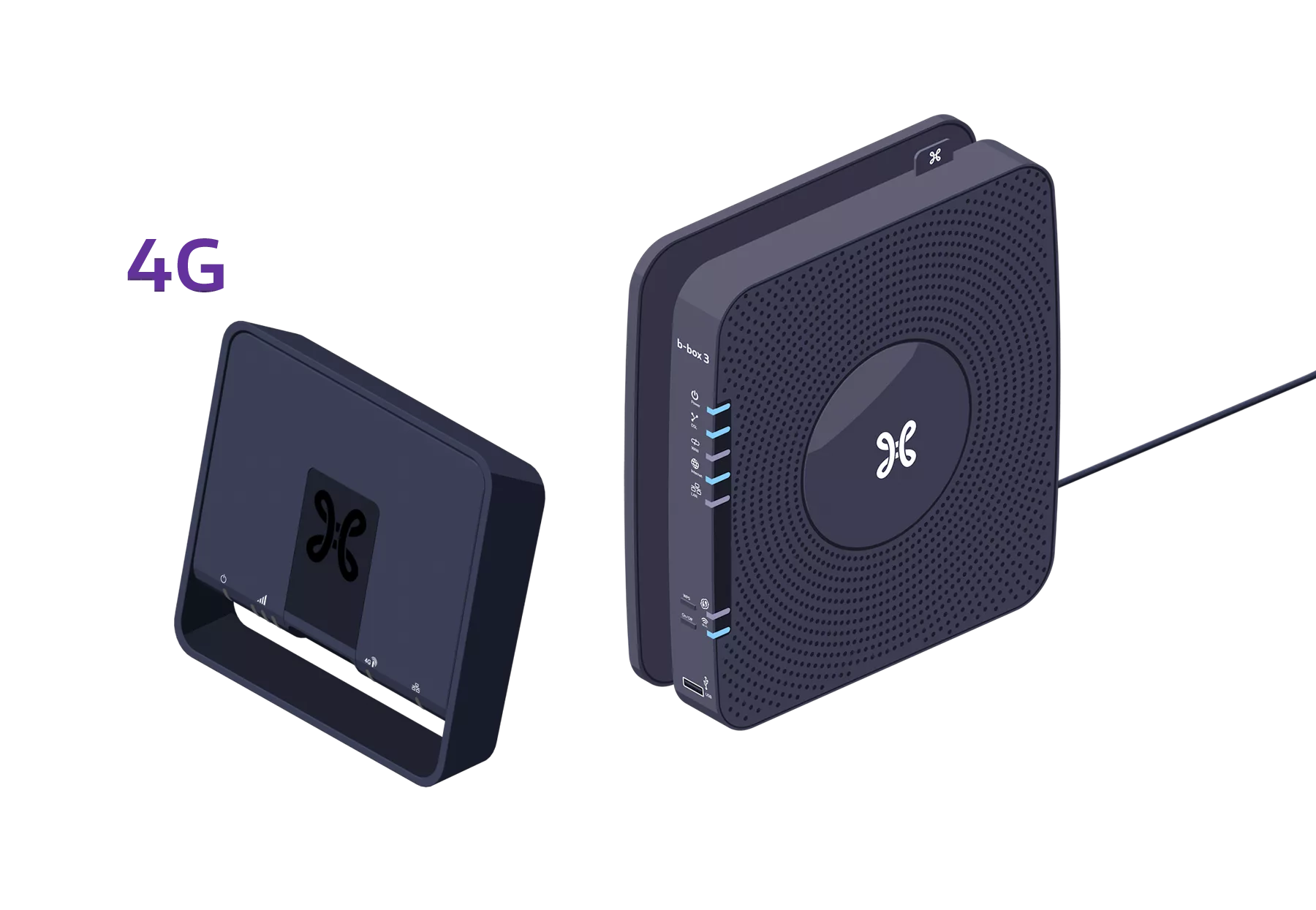
With this Modem 4G, your Internet connection is guaranteed. It will automatically switch to a 4G connection if your fixed Internet connection is interrupted.
Place your Modem 4G near your b-box 3. Make sure you have good 4G coverage in that location.
The Modem 4G can be placed in another room, and the Ethernet cable supplied can be replaced with another Ethernet cable of any length required. The more blue bars that are turned on, the better the signal will be.
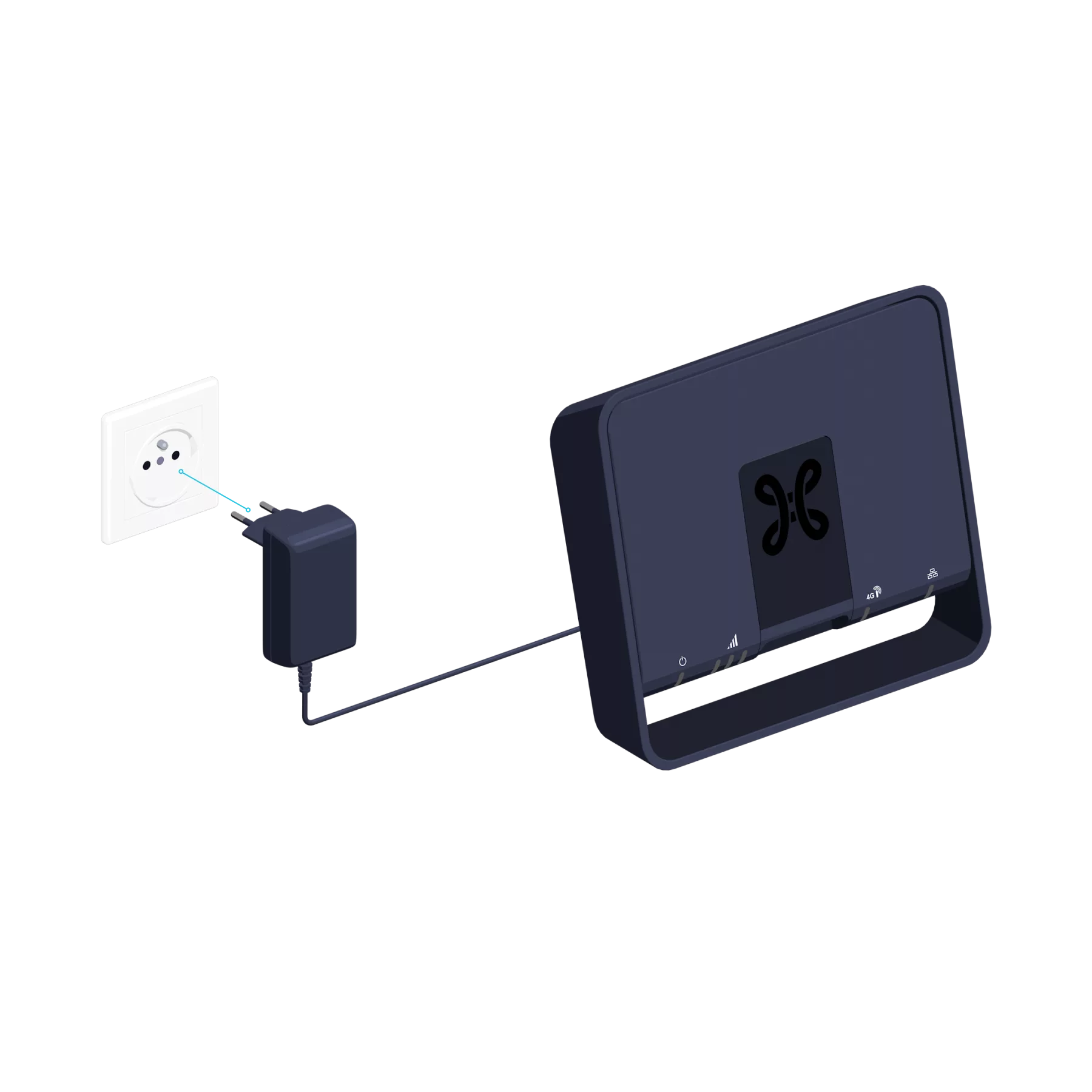
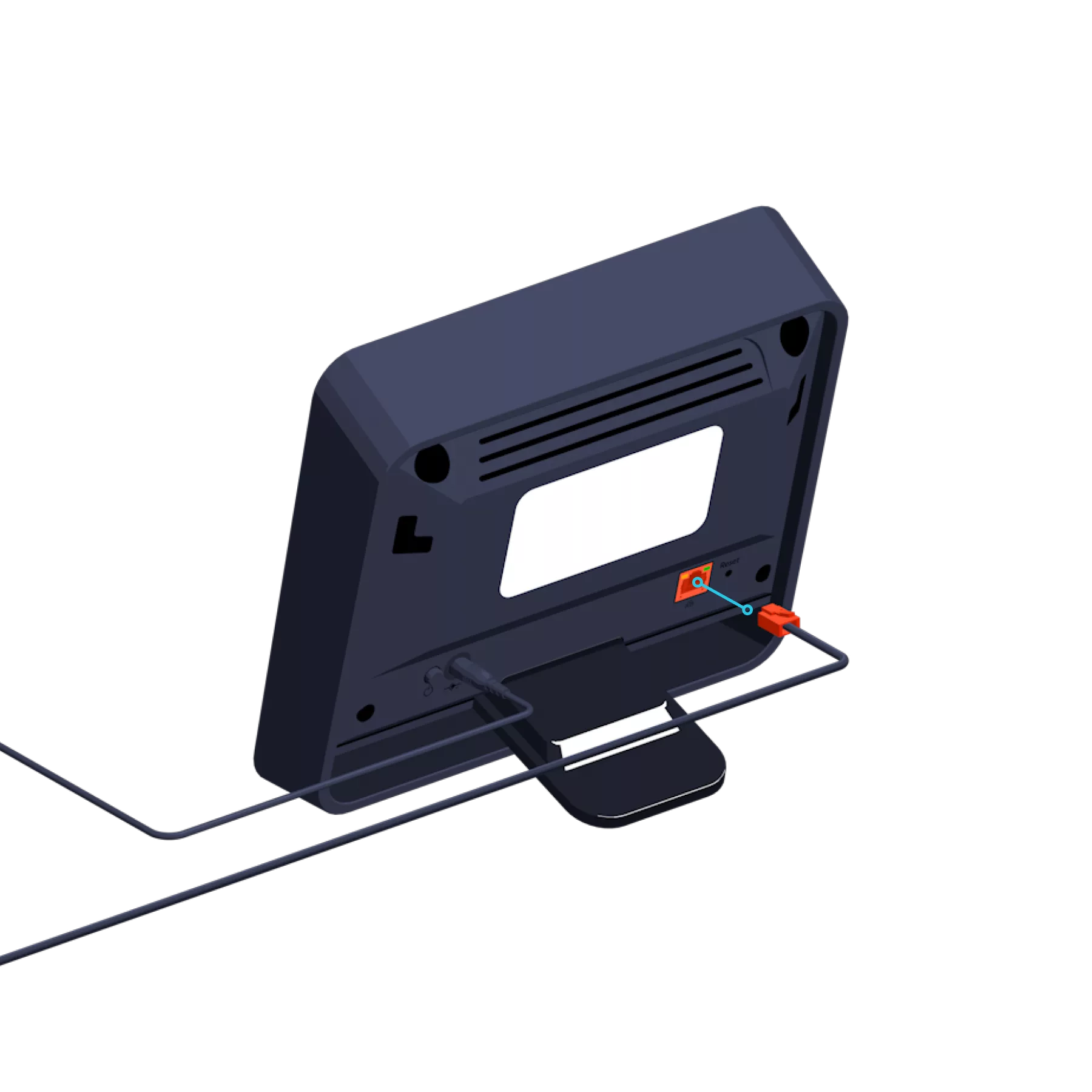
Connect the power cable to your Modem 4G and to a power socket.
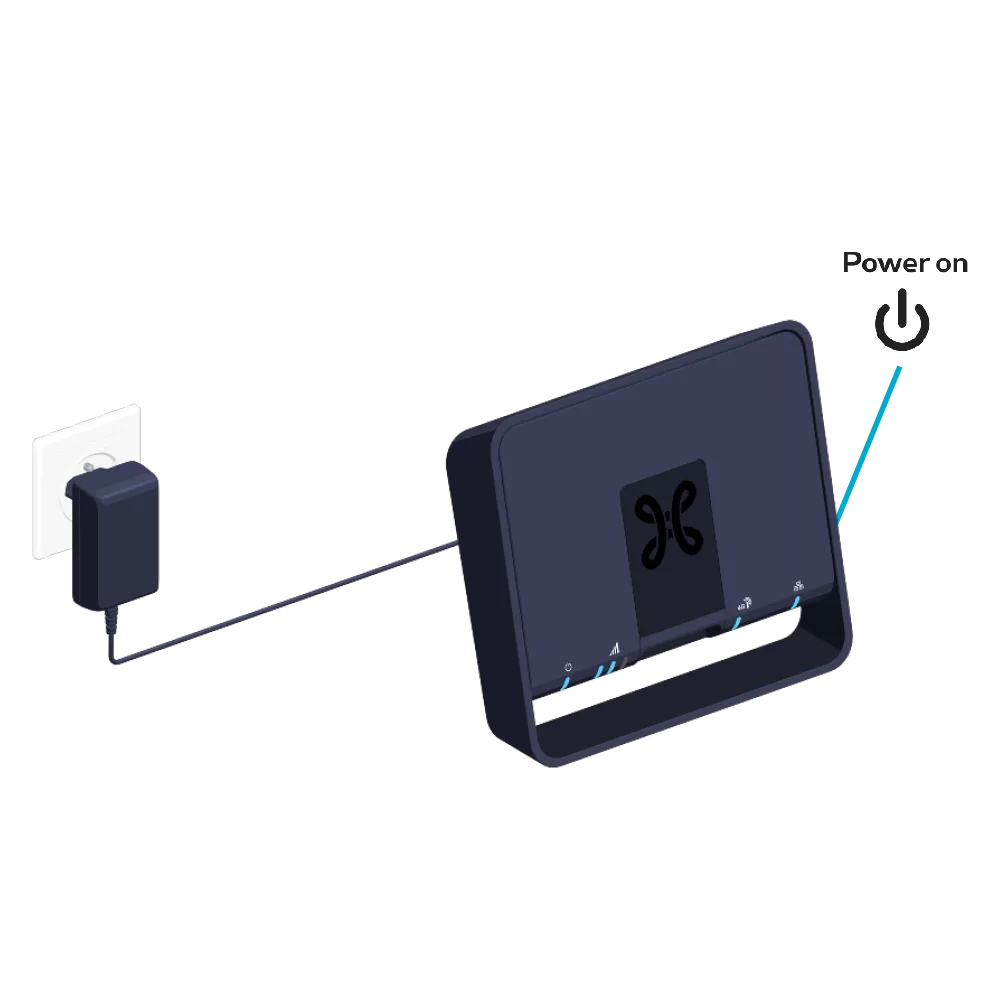
At the back, the switch is in the “ON” position
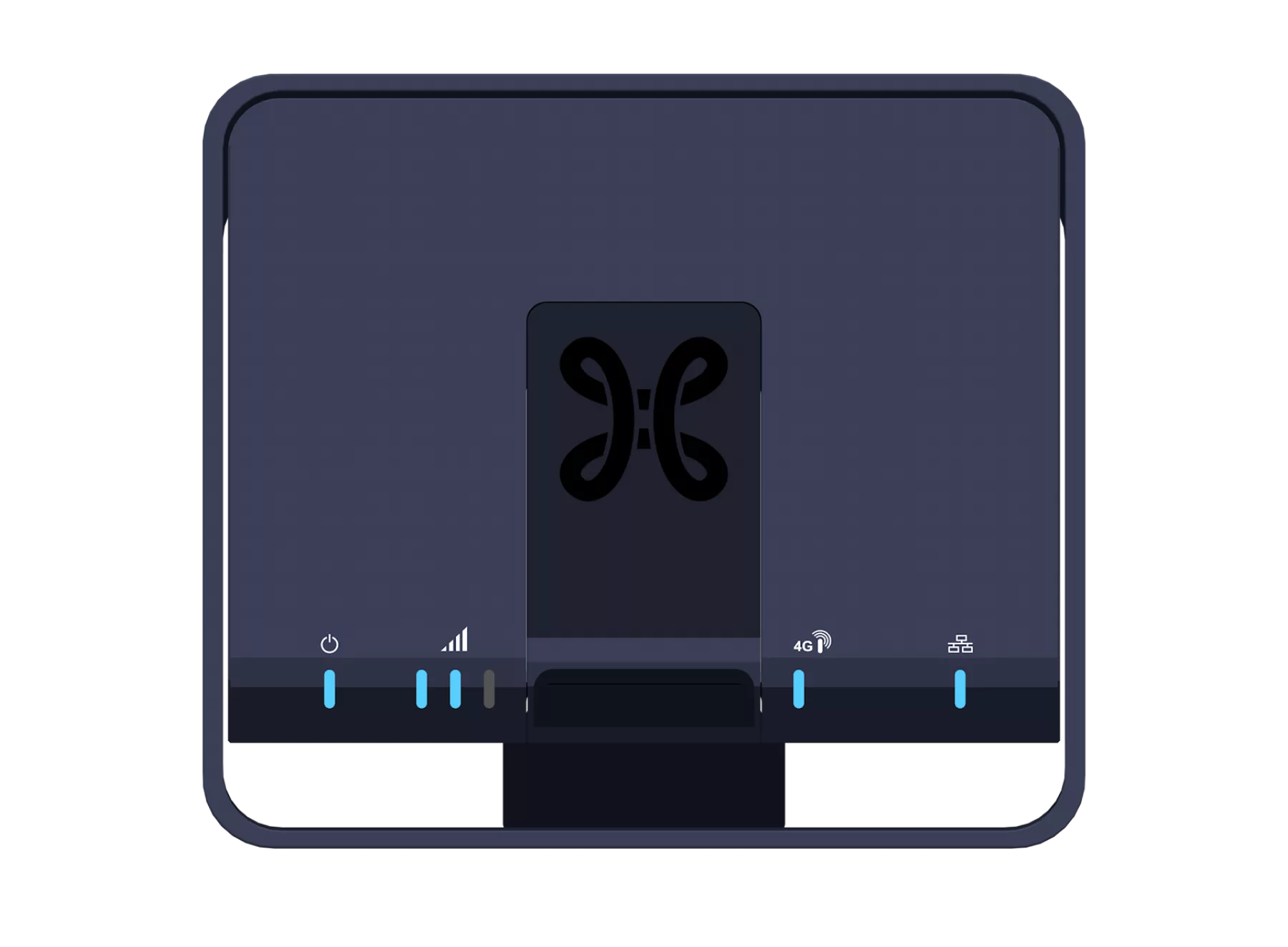
At the front, the indicator lights
and
turn blue.
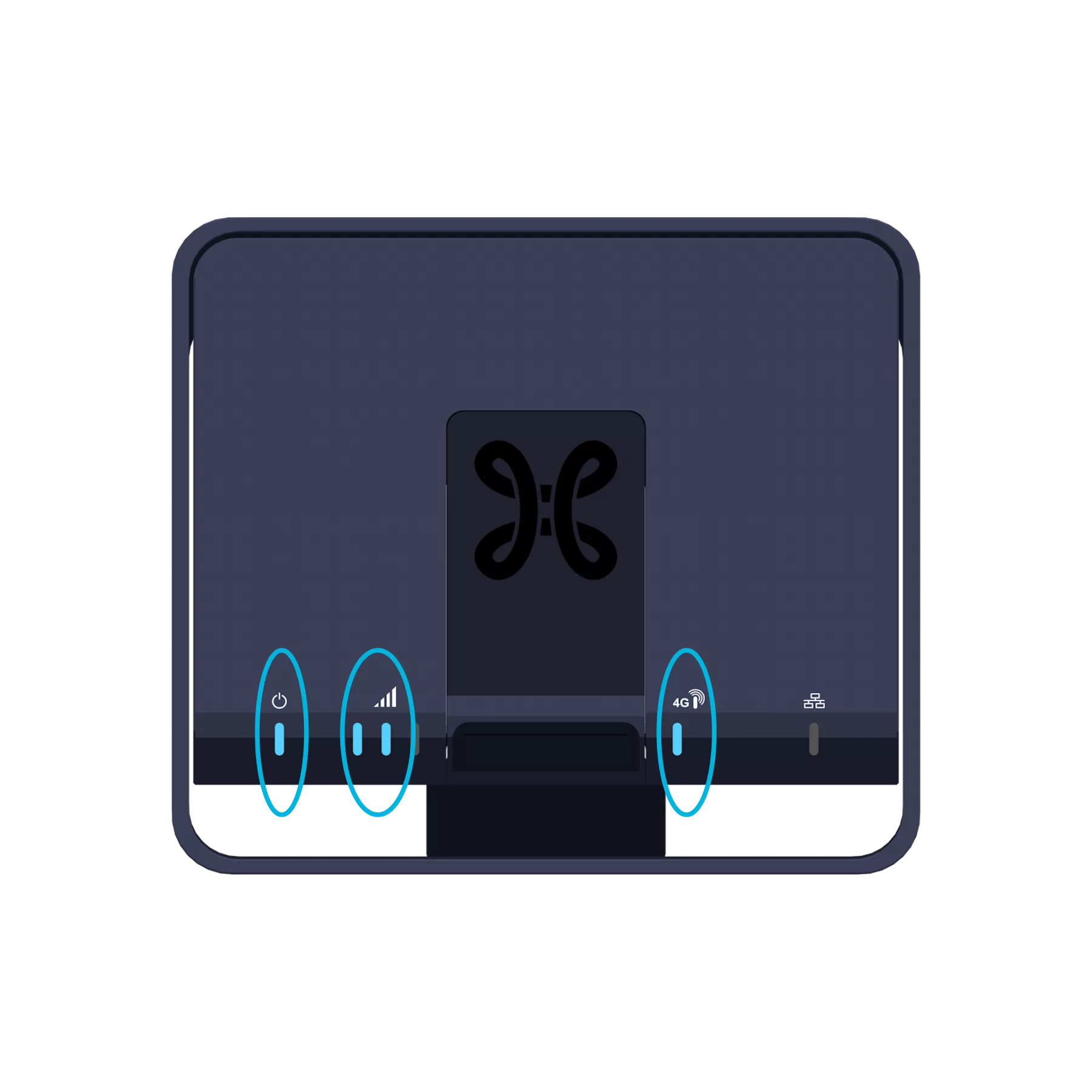
At least one signal strength bar
must turn on blue and remain steady.
Step 3
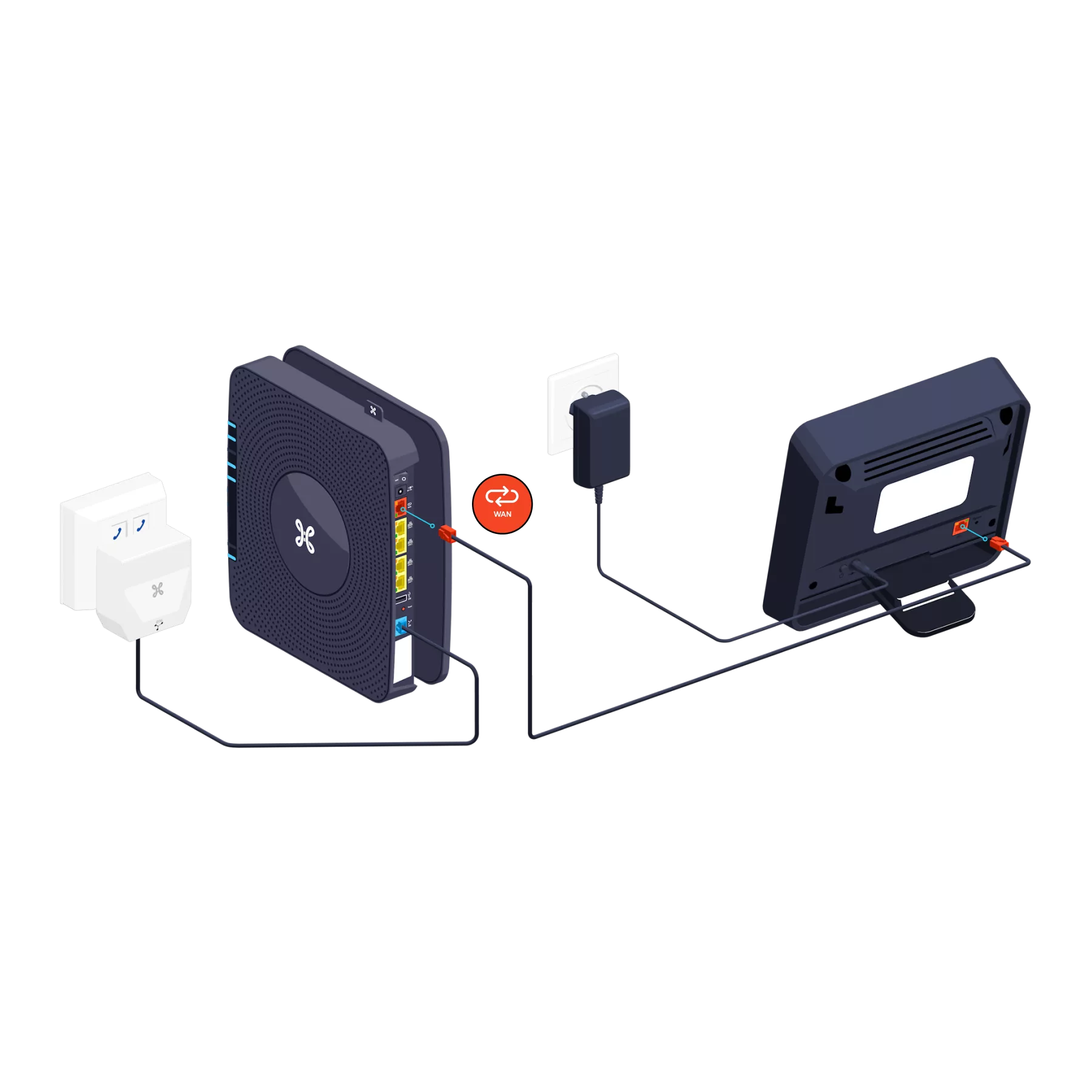
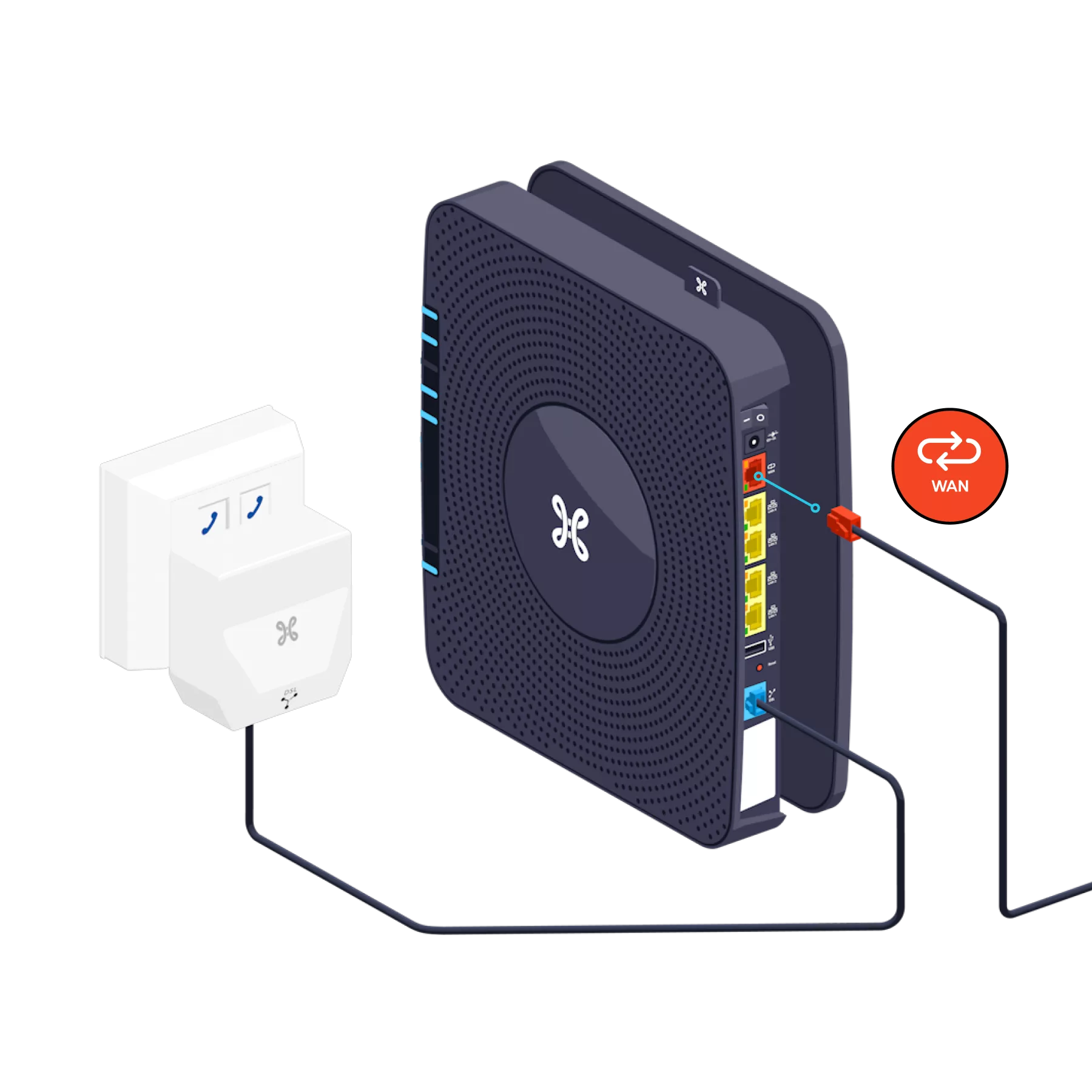
Connect the Modem 4G to the b-box 3
Use the Ethernet cable and connect it to the red Ethernet port on the back of the b-box 3. Connect the other end of the cable to the Modem 4G.
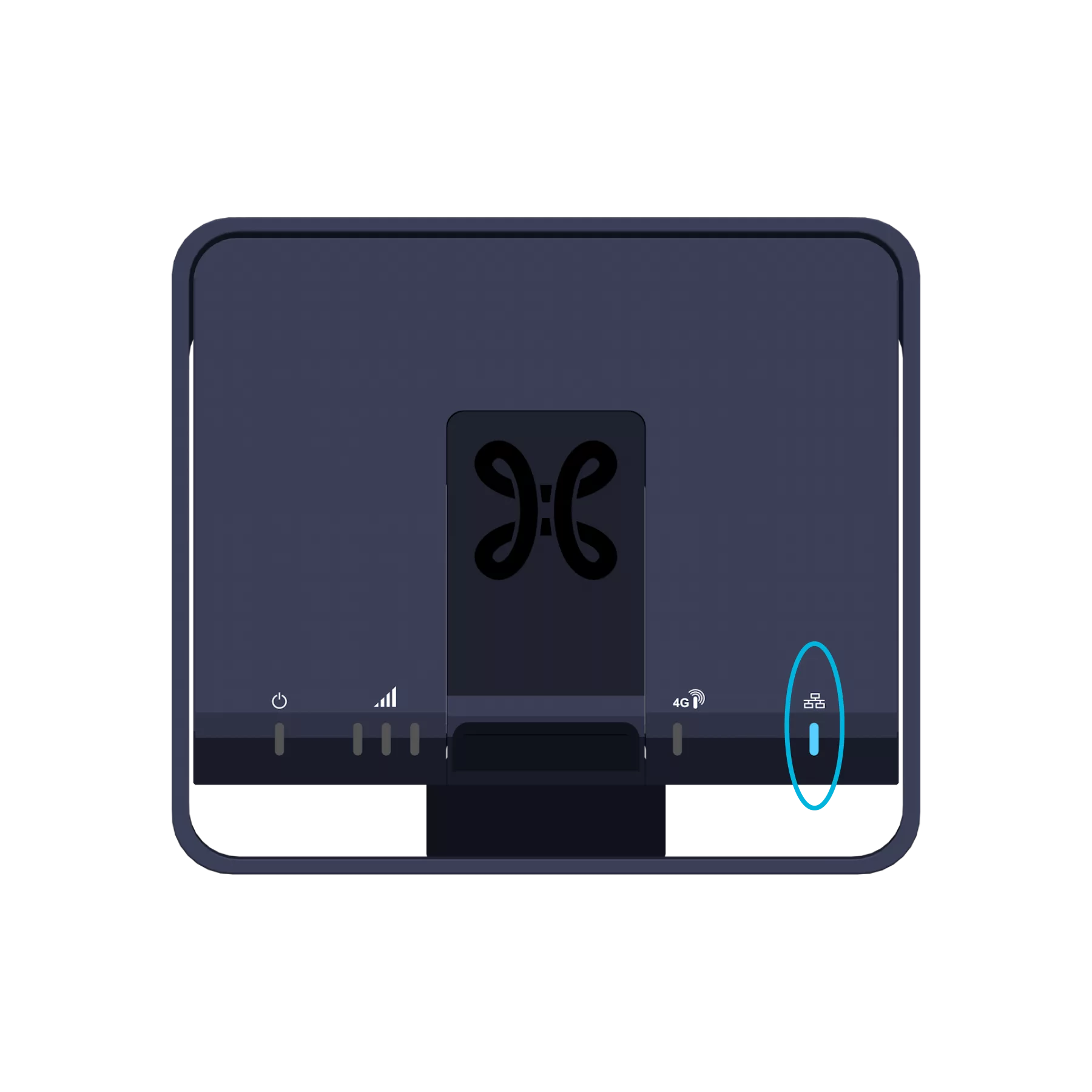
On the Modem 4G, the Network indicator light
turns blue.
Step 4
Configuration and automatic updates for the Modem 4G
Configuration may take at least 15 minutes
During this update, the indicator lights may turn on and off, or change from red to blue… this is normal. Once all four indicator lights shown below are turned on and steady, the Modem 4G is ready.
Switch your b-box 3 off and then back on. Your b-box 3 may need to update again to support the new service. This process may take up to 10 minutes. The indicator lights will turn blue one after the other.